How to Connect Asana to Google Sheets in 2026: Sync and Reports
To connect Asana to Google Sheets, install the free Asana Exports add-on, choose Sync to Google Sheets in an Asana project or portfolio, copy the link, then paste it in Sheets under Extensions, Asana Exports, Sync with Asana. The sync is one-way (Asana to Sheets) and capped at 500 rows. It needs Asana Advanced ($24.99 per user a month, billed yearly) or higher.
This guide follows Asana’s help article Google Sheets and Asana, the Google Sheets app page and the Asana pricing page, all checked on October 16, 2026.
What you need first
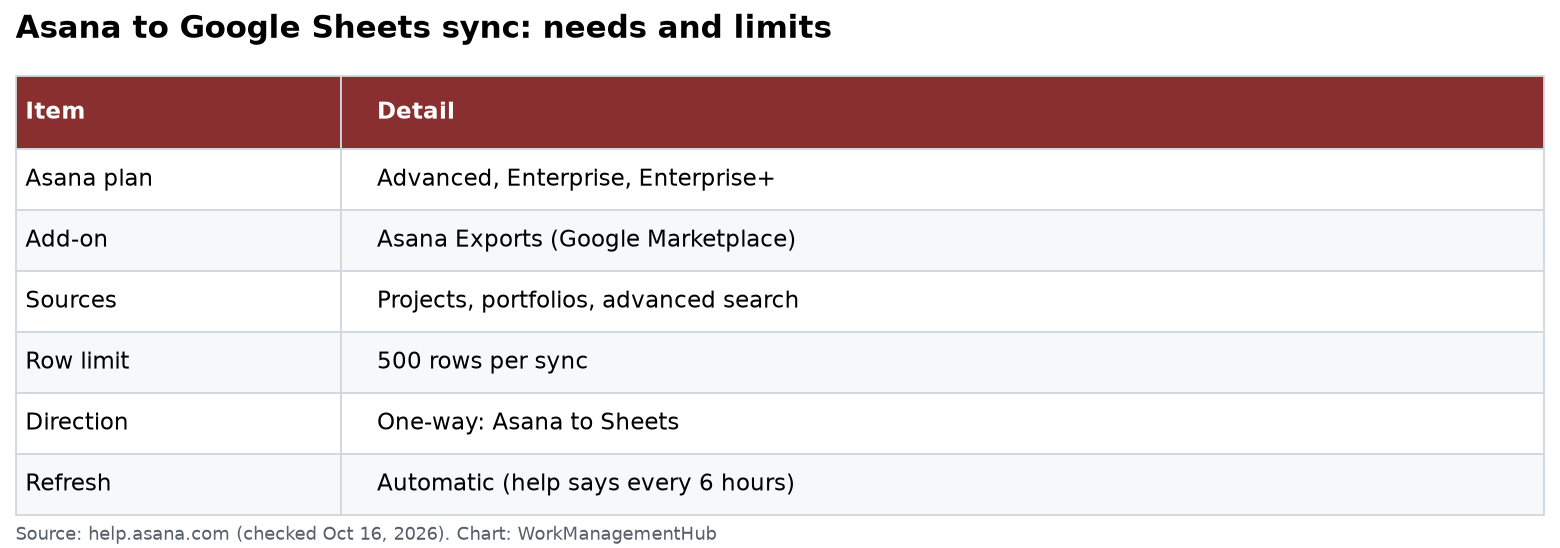
| Item | Detail |
|---|---|
| Asana plan | Advanced, Enterprise or Enterprise+ (or legacy Business, Legacy Enterprise) |
| Google account | Any account that can use Google Sheets add-ons |
| Add-on | Asana Exports, from the Google Workspace Marketplace |
| Sources you can sync | Projects, portfolios and advanced search results |
| Row limit | 500 rows per sync |
| Direction | One-way: Asana to Sheets |
| Refresh | Automatic (the help article says every 6 hours) |
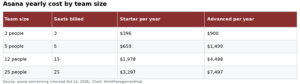
On Personal (free) or Starter ($10.99 per user a month, yearly), the sync is not available. See our Asana pricing guide for what each plan adds.
Step 1: Install the Asana Exports add-on
- Open any Google Sheet.
- Go to Extensions, then Add-ons, then Get add-ons.
- Search for Asana Exports and install it.
- Click Allow to give the add-on permission.
The first time you sync, you will also be asked to authorize Asana to connect with your Google account.
Step 2: Get the sync link from Asana
- Open the Asana project or portfolio you want to report on.
- Click the drop-down arrow next to the project or portfolio name.
- Choose Export/Print, then Sync to Google Sheets.
- A box opens with a URL. Copy it.
For a portfolio, add all the projects you want first. The sheet only shows what is in the portfolio at the time.
Step 3: Paste the link into a new sheet
- Create a new, blank Google Sheet.
- Go to Extensions, then Asana Exports, then Sync with Asana.
- Paste the URL and click OK.
Your Asana data now fills the sheet.
What the portfolio sheet looks like
A portfolio sync builds three tabs:
- Overview: how to use the sheet, with two example charts made from your data.
- Asana project data: the key fields for each project. Sort and filter freely.
- Live source data: the raw feed from Asana. It is locked to protect the link.
Hover over a column header to see what that column means.
How often does the data refresh?
The help article says the sheet updates every 6 hours. Further down, in its report example, the same article says the live tab updates every hour. Plan for the slower number. If you need fresh numbers before a meeting, run Sync with Asana again by hand.
The golden rule: reference, don’t copy
Never type over the Live source data tab, and don’t copy and paste from it. Build your reports on new tabs that point to it. Then each refresh flows into your charts.
How to reference a column:
- Add a new tab with the + at the bottom left.
- Click the top-left cell and type =.
- Go to the Live source data tab and click the header of the column you want, like Name.
- Press Enter.
- Repeat for the next columns, then drag the fill handle down.
Three reports worth building
1. At-risk projects due soon
- On a new tab, reference Name, Due Date and Status Color.
- Add a column called DAYS TILL DUE with
=DATEDIF(NOW(), B2, "D"). - Sort by Status Color.
- Insert a scatter chart with Status Color, Days Till Due and Name (pick Name last so it labels each dot).
Any red project due in under 60 days is in the danger zone.
2. Tasks completed by project owner
- On the Live source data tab, select the rows below the header.
- Choose Data, then Pivot table.
- Under Rows, add Owner. Under Values, add Tasks Completed as a Sum.
This shows which owners are moving work forward each week.
3. Share of projects on track
Make a pie chart of the Status Color column. It gives leaders a one-glance health check. Asana also suggests a stacked bar of projects by percent complete, by team.
Google’s Explore button (bottom right in Sheets) can suggest charts from your data too.
A simple weekly setup
Here is a setup many teams can copy in about 20 minutes:
- Sync your main portfolio to a new sheet.
- Add one tab per report: at-risk projects, owner pivot and the status pie.
- Name the sheet clearly, like “Portfolio report (auto, Asana sync).”
- Share it as view only with leaders, so nobody types over the data.
- Every Monday, run Sync with Asana by hand, then glance at the red projects.
Keep the people who edit the sheet to one or two. Fewer editors means fewer broken formulas.
Smart chips: a lighter option
You don’t always need a full sync. With Google smart chips, you can @-mention an Asana task right inside a sheet. The chip shows key task details. This works well for a small tracker that points to a handful of tasks.
Limits and workarounds
- 500 rows. Large projects or searches get cut off. Split the report across several projects, or sync a filtered advanced search instead of a whole project.
- One-way only. Edits in Sheets do not flow back into Asana. For two-way sync, you need a third-party tool like Zapier or Unito. Our Asana automation rules guide covers what Asana can do on its own.
- Not real time. Use Asana’s own dashboards for live numbers. See our Asana reporting dashboards guide.
- Plan gate. Starter users can’t sync. Exporting to CSV and importing into Sheets is a manual fallback.
Google Sheets vs Power BI
Sheets is the quick, free choice for small teams. If your company already runs Power BI and needs data from many tools, the Power BI route scales better. Read our Asana and Power BI guide to compare.
Troubleshooting
- “Sync with Asana” is missing: reinstall the Asana Exports add-on and refresh the sheet.
- Some projects are missing: add them to the portfolio, then sync again.
- Rows stop at 500: you hit the cap. Narrow the source.
- Charts stop updating: check that they reference the Live source data tab, not a pasted copy.
- Permission errors: the person who set up the sync needs access to the projects in Asana.
Common questions
Is the Asana Google Sheets integration free?
The add-on is free, but the sync needs Asana Advanced ($24.99 per user a month, yearly), Enterprise or Enterprise+.
How often does Asana update Google Sheets?
Asana’s help article says every 6 hours. You can also run Sync with Asana by hand at any time.
Is there a row limit?
Yes. The current limit for syncing and exporting is 500 rows.
Can I edit Asana tasks from Google Sheets?
No. The sync is one-way, from Asana to Sheets. Two-way sync needs a third-party tool.
Can I sync search results?
Yes. Google Sheets exports work for portfolios, projects and advanced search results.
Checked against help.asana.com (Google Sheets and Asana), asana.com/apps/google-sheets and asana.com/pricing on October 16, 2026.
From our team: OneSmar for Smartsheet Teams