Skip to content
-
Subscribe to our newsletter & never miss our best posts. Subscribe Now!
Work Management Hub Work Management Hub

Expert Reviews, Comparisons & Guides for Smartsheet, Monday.com, Asana, ClickUp & More

Work Management Hub Work Management Hub

Expert Reviews, Comparisons & Guides for Smartsheet, Monday.com, Asana, ClickUp & More

  • Airtable
  • Asana
  • ClickUp
  • Jira
  • Monday.com
  • Notion
  • Smartsheet
  • Wrike
  • About
  • Contact
  • Airtable
  • Asana
  • ClickUp
  • Jira
  • Monday.com
  • Notion
  • Smartsheet
  • Wrike
  • About
  • Contact
Close

Search

  • https://www.facebook.com/
  • https://twitter.com/
  • https://t.me/
  • https://www.instagram.com/
  • https://youtube.com/
AsanaIntegrations

Integrating Asana with Microsoft Power BI in 2026: Complete Data Visualization Guide

By Khasim
June 29, 2026 9 Min Read
0
Key Takeaways

  • Integration of Asana with Microsoft Power BI in 2026 provides comprehensive project data visualization.
  • The integration is available on Asana’s Advanced, Enterprise, Enterprise+, and legacy tiers.
  • Power BI integration supports a wide range of Asana data exports including projects, tasks, and goals.
  • Access to Power BI Desktop and Power BI Service is essential for setup and viewing dashboards.
  • Asana Advanced Plan costs $24.99 per user, per month, billed annually.
Quick Answer:

Integrating Asana with Microsoft Power BI in 2026 allows organizations to efficiently visualize project data. This integration is available on select Asana plans, requires Power BI Desktop and Service, and supports a variety of data exports. Setup involves downloading a connector and configuring Power BI settings.

Table of Contents

  1. Overview of Asana and Power BI Integration
  2. Setting Up Asana and Power BI Integration
  3. Supported Data Types for Integration
  4. Requirements for Using Power BI with Asana
  5. Asana Plan Pricing and Features
  6. Creating and Customizing Dashboards in Power BI
  7. Understanding the Limitations

Overview of Asana and Power BI Integration

Integrating Asana with Microsoft Power BI has become a pivotal tool for organizations aiming to enhance their project management capabilities through data visualization. By harnessing the power of Power BI’s analytics features, teams can transform raw project data into actionable insights. In 2026, this integration remains robust, offering users the ability to export and visualize data across multiple dimensions, including tasks, projects, and custom fields.

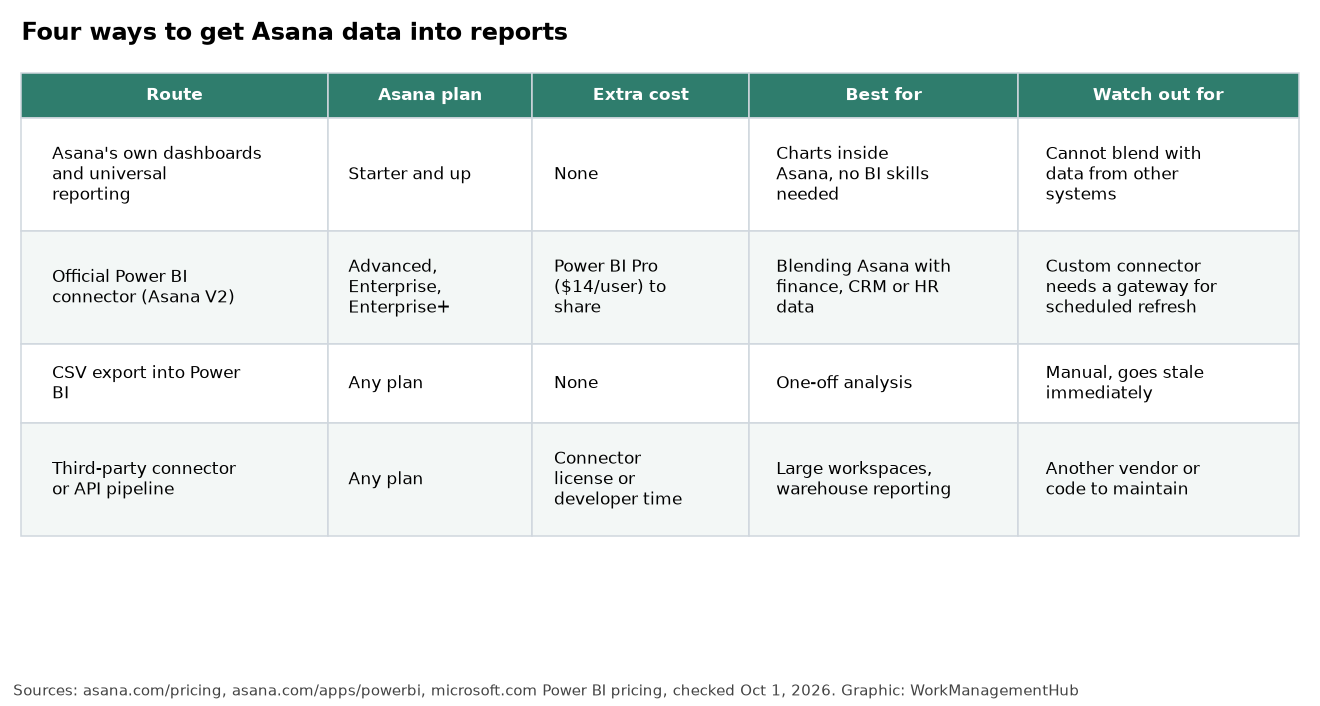
The integration is available on several Asana plans, namely the Advanced, Enterprise, and Enterprise+ tiers. Legacy users on the Business and Enterprise tiers can also access this functionality. This broad availability ensures that teams of different sizes and needs can leverage the power of data visualization to streamline their project management processes.

Power BI, a leading business analytics tool by Microsoft, complements Asana’s project management features by providing a platform for creating interactive dashboards and reports. Users can explore data trends, identify bottlenecks, and make data-driven decisions, thereby enhancing overall productivity and efficiency.

For businesses already using Asana, the integration with Power BI offers a seamless way to gain deeper insights into their workflows. It bridges the gap between project management and data analytics, enabling teams to visualize their progress and performance in real-time. This capability is especially valuable for enterprises that rely on data to drive strategic decisions.

In the following sections, we’ll delve into the specifics of setting up the integration, the types of data supported, and how to utilize Power BI’s features to maximize the benefits of this powerful combination. For more information on Asana’s features, visit [Asana’s official website](https://asana.com/pricing?utm_source=openai).

Setting Up Asana and Power BI Integration

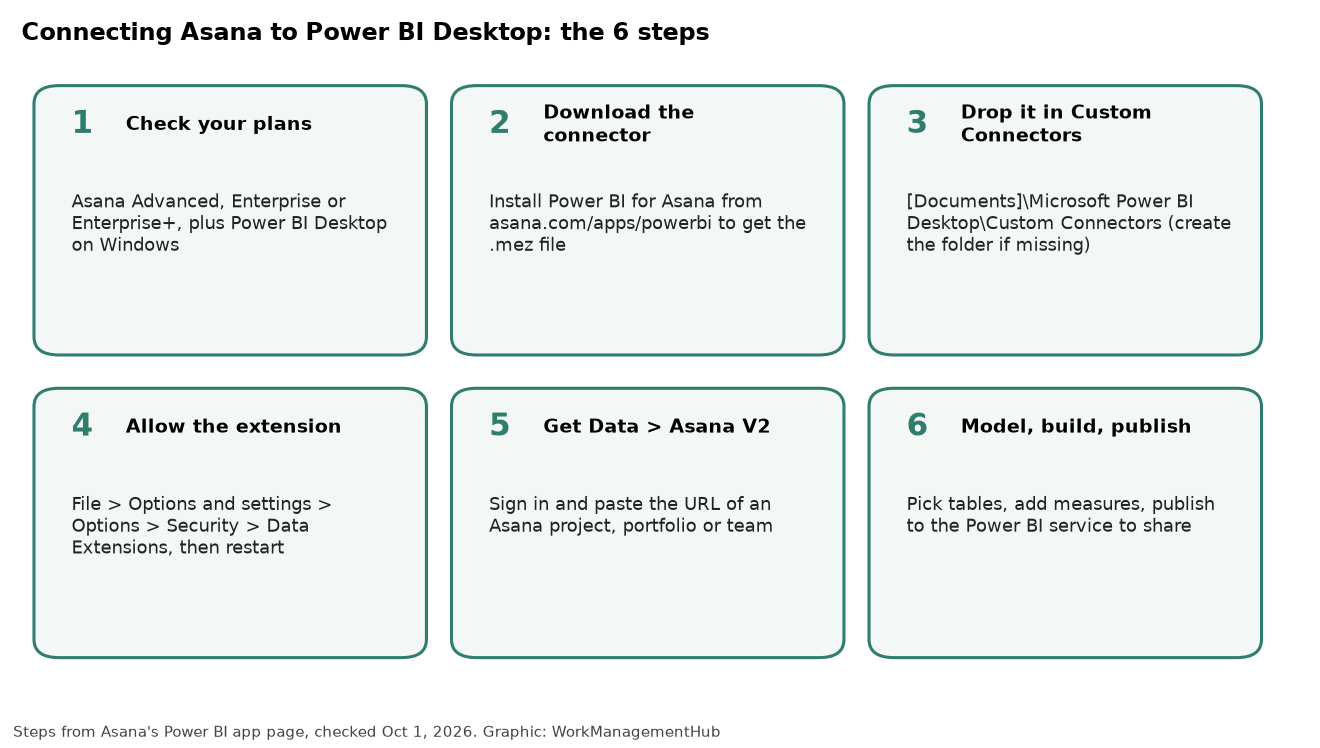
Setting up the integration between Asana and Microsoft Power BI involves several critical steps that ensure seamless data flow and visualization capabilities. Below is a step-by-step guide to help you get started:

  1. Download the Connector — Visit Asana’s official website to download the .mez connector file. This file is essential for establishing the connection between Asana and Power BI. ([help.asana.com](https://help.asana.com/s/article/power-bi-integration?utm_source=openai))
  2. Place the Connector File — Save the .mez file in the `[Documents]\Microsoft Power BI Desktop\Custom Connectors` folder on your local machine. This enables Power BI Desktop to recognize and utilize the connector.
  3. Adjust Data Extension Settings — Open Power BI Desktop, navigate to the settings, and adjust the data extension security settings to allow any extension to load without validation or warning.
  4. Restart Power BI Desktop — After adjusting the settings, restart Power BI Desktop to apply the changes.
  5. Initiate Data Import — Click on “Get Data” in Power BI Desktop, search for “Asana V2,” and enter the Asana URL that you wish to export into Power BI. This will initiate the data import process.

Before starting the setup, ensure that you have access to Power BI Desktop and Power BI Service. Power BI Desktop is necessary for creating and customizing dashboards, while Power BI Service allows you to view data using templates or published dashboards. For teams, it’s important to note that if you’re syncing data from a team, the team must be on an Enterprise or Enterprise+ plan in Asana. This ensures that all data is accurately represented in Power BI.

Supported Data Types for Integration

Asana’s integration with Power BI supports a comprehensive range of data types, enabling users to visualize various aspects of their projects. Understanding the types of data that can be exported and visualized is crucial for maximizing the utility of this integration.

– **Portfolios and Projects**: Users can export entire portfolios and projects, allowing them to gain a broad view of ongoing initiatives. This is particularly useful for managers who need to oversee multiple projects simultaneously.

– **Project and Portfolio Status Updates**: Regular status updates can be exported, providing insights into project progress and any potential roadblocks. This feature helps teams stay aligned with project timelines and objectives.

– **Goals and Allocations**: Exporting goals and resource allocations enables teams to track progress against objectives and ensure that resources are being utilized efficiently.

– **Tasks and Subtasks**: The integration supports detailed task and subtask exports, including associated custom fields. This granularity allows teams to analyze task-level data and identify areas for improvement.

– **Custom Fields**: Custom fields within tasks and projects can also be exported, offering additional layers of data for analysis. This flexibility allows teams to tailor their data visualization to meet specific needs.

While the integration offers extensive data support, there are some limitations to be aware of. For instance, if the exported data exceeds 1,000 tasks, only the most up-to-date data is received with the first data load, and subsequent updates occur every four hours. Additionally, custom field value change history and full domain exports are not supported. For more information on supported data types, refer to Asana’s [help center](https://help.asana.com/s/article/power-bi-integration?utm_source=openai).

Requirements for Using Power BI with Asana

To effectively integrate Asana with Power BI, certain requirements must be met to ensure a successful setup and operation. These requirements include software access, plan eligibility, and understanding of limitations.

– **Power BI Desktop**: Access to Power BI Desktop is necessary for creating and customizing dashboards. This software is available for Windows users only and is essential for users who wish to have full control over their data visualization.

– **Power BI Service**: Access to Power BI Service, the online component of Power BI, is required for viewing data using templates or published dashboards. This allows users to share insights with team members and stakeholders easily.

– **Asana Plan Eligibility**: The integration is available on Asana’s Advanced, Enterprise, and Enterprise+ plans, as well as legacy Business and Enterprise tiers. Teams must ensure they are on one of these eligible plans to access the integration features. ([asana.com](https://asana.com/pricing?utm_source=openai))

– **Team Plan Requirements**: If you’re syncing data from a team, the team must be on an Enterprise or Enterprise+ plan in Asana. This requirement ensures that data integrity and access are maintained across the organization.

– **Data Export Limitations**: Be mindful of the limitations related to data exports. For instance, if the exported data exceeds 1,000 tasks, only the most up-to-date data is received with the first data load, and subsequent updates occur every four hours. Additionally, custom field value change history and full domain exports are not supported.

Understanding these requirements and limitations is crucial for ensuring a smooth integration experience. By meeting these prerequisites, teams can fully leverage the benefits of Asana and Power BI integration, enhancing their ability to analyze and visualize project data effectively.

Asana Plan Pricing and Features

Choosing the right Asana plan is essential for organizations looking to integrate with Power BI and maximize their project management capabilities. Below is a table comparing the relevant Asana plans that support Power BI integration:

PlanPriceFeatures
Advanced$24.99/user/month (billed annually)Power BI integration, advanced reporting, custom fields, task dependencies
EnterpriseContact for pricingAll Advanced features, custom branding, priority support, advanced security
Enterprise+Contact for pricingAll Enterprise features, dedicated account manager, enhanced API access

The Advanced plan is priced at $24.99 per user, per month, billed annually, making it accessible for small to medium-sized teams looking to harness the power of Power BI for data visualization. For larger enterprises, the Enterprise and Enterprise+ plans offer additional features such as custom branding, priority support, and enhanced API access. Pricing for these plans is available upon contacting Asana’s sales team.

Choosing the right plan depends on your organization’s specific needs and budget. For more detailed information on each plan, visit [Asana’s pricing page](https://asana.com/pricing?utm_source=openai).

Creating and Customizing Dashboards in Power BI

Once the integration is set up, one of the most powerful aspects of combining Asana with Power BI is the ability to create and customize dashboards. These dashboards allow teams to visualize data in a way that is both meaningful and actionable.

  1. Access Power BI Desktop — Open Power BI Desktop to begin creating your dashboard. This tool provides all the features necessary for customizing your data visualizations.
  2. Import Asana Data — Use the “Get Data” function to import data from Asana. Select the relevant datasets such as tasks, projects, and custom fields that you wish to visualize.
  3. Create Visualizations — Drag and drop data fields onto the canvas to create visualizations. Power BI supports a wide variety of visualization types, including bar charts, line graphs, and pie charts.
  4. Customize Visuals — Customize your visualizations by adjusting colors, labels, and data filters. This ensures that the dashboard aligns with your organization’s branding and reporting standards.
  5. Publish to Power BI Service — Once your dashboard is complete, publish it to Power BI Service. This allows you to share your insights with team members and stakeholders, facilitating collaboration and decision-making.

Creating dashboards in Power BI allows teams to monitor project metrics in real-time, identify trends, and make informed decisions. By customizing dashboards to meet specific needs, organizations can ensure that they are leveraging their data to its full potential. For additional guidance on creating dashboards, refer to Power BI’s [official documentation](https://help.asana.com/s/article/power-bi-integration?utm_source=openai).

Understanding the Limitations

While the integration of Asana with Power BI offers numerous benefits, it’s important to be aware of certain limitations that may impact your data analysis and visualization efforts.

– **Task Data Limit**: The integration supports data exports of up to 1,000 tasks. If your exported data exceeds this limit, only the most up-to-date data is received with the first data load. Subsequent data updates occur every four hours, which may delay the availability of the latest information.

– **Custom Field Value Change History**: The integration does not support the export of custom field value change history. This means that while you can visualize current custom field values, tracking historical changes requires alternative methods.

– **Full Domain Exports**: Full domain exports are not supported by the integration. This limitation means that users cannot export all data within an Asana domain, which might be necessary for organizations seeking comprehensive data analysis.

Understanding these limitations is crucial for setting realistic expectations and developing workarounds where necessary. Despite these constraints, the integration still provides a powerful tool for visualizing and analyzing project data. For a detailed overview of limitations, visit Asana’s [help center](https://help.asana.com/s/article/power-bi-integration?utm_source=openai).

Frequently Asked Questions

What plans do I need for Asana and Power BI integration?

To access the integration, you need to be on Asana’s Advanced, Enterprise, or Enterprise+ plans, or the legacy Business and Enterprise tiers. These plans provide the necessary features and support for integrating with Power BI.

How often is the data updated in Power BI?

Data updates occur every four hours for exported data exceeding 1,000 tasks. The initial data load provides the most up-to-date information, but subsequent updates are on a four-hour schedule.

Can I track historical changes to custom fields?

No, the integration does not support tracking historical changes to custom fields. You can visualize current custom field values but will need other methods to track changes over time.

What types of visualizations can I create with Power BI?

Power BI supports a wide range of visualizations, including bar charts, line graphs, pie charts, and more. You can customize these visuals to meet your specific reporting needs.

Is Power BI Desktop available for Mac users?

No, Power BI Desktop is only available for Windows users. Mac users will need to use alternative methods or tools to access and customize Power BI dashboards.

Related guides

  • How to Connect Asana to Google Sheets in 2026: Sync Data & Automate Reports
  • Microsoft Project vs Monday.com vs Asana 2026: Which Wins?
  • Asana + Microsoft Teams Integration 2026: Step-by-Step Setup

Verdict

Integrating Asana with Microsoft Power BI in 2026 offers organizations a powerful means to visualize and analyze project data. While there are certain limitations, the benefits of enhanced data-driven decision-making and improved project management efficiency make this integration a valuable asset for teams. By choosing the right Asana plan and understanding the setup process, organizations can unlock the full potential of their data.

Author

Khasim

Khasim is a work management expert and entrepreneur with a deep passion for project management tools. He works hands-on with platforms like Smartsheet, Monday.com, Asana, ClickUp, Jira, Notion, Wrike and Airtable every day, and loves automating workflows to save teams and customers a ton of time. On WorkManagementHub he shares practical setup guides, honest tool comparisons, and real-world troubleshooting drawn from daily use.

Follow Me
Other Articles
Previous

Monday.com for Education Teams 2026: Streamlining Curriculum Planning and Faculty Collaboration

Next

Maximizing Productivity with Notion Widgets in 2026: Customization and Setup Guide

No Comment! Be the first one.

    Leave a Reply Cancel reply

    Your email address will not be published. Required fields are marked *

    Sponsored Smartsheet Expert Services – Implementation, Automation, Training
    Sponsored Power BI & Tableau Analytics – Dashboards, Reporting, Insights
    Sponsored AI Agents for Work Management – Automate Tasks, Integrate Tools

    Categories

    • Airtable (18)
    • Alternatives (12)
    • Asana (41)
    • ClickUp (45)
    • How-To Guides (178)
    • Integrations (17)
    • Jira (34)
    • Monday.com (47)
    • Notion (32)
    • Pricing Guides (11)
    • Project Management (79)
    • Smartsheet (36)
    • Tool Comparisons (58)
    • Wrike (17)

    Recent Post

    • Maximizing Productivity with Notion Widgets in 2026: Customization and Setup Guide
    • Integrating Asana with Microsoft Power BI in 2026: Complete Data Visualization Guide
    • Monday.com for Education Teams 2026: Streamlining Curriculum Planning and Faculty Collaboration
    • Leveraging Jira’s AI-Driven Auto-Assignments for Enhanced Workflow in 2026
    • Monday.com vs Airtable 2026: Best for Non-Profit Project Management?
    Work Management Hub

    Independent expert reviews & comparisons of work management tools — helping 50,000+ teams choose the right software.

    Tools We Cover

    • Smartsheet
    • Monday.com
    • ClickUp
    • Asana
    • Notion
    • Jira
    • Wrike
    • Airtable

    Company

    • About Us
    • Contact Us
    • Privacy Policy
    Copyright 2026 — Work Management Hub. All rights reserved. Blogsy WordPress Theme