
Wrike’s New Gantt Chart became the default for every user in June 2026. It is faster, it can export to PDF, it shows float (how many days a task can slip), and it shares public snapshots. In September 2026 Wrike added a Successors column, start constraints and, on Pinnacle and Apex, links between whole projects. The basic Gantt view needs a paid plan (Team at $10 per user a month, billed yearly). Baselines, critical path float and PDF export need Business ($25) or higher.
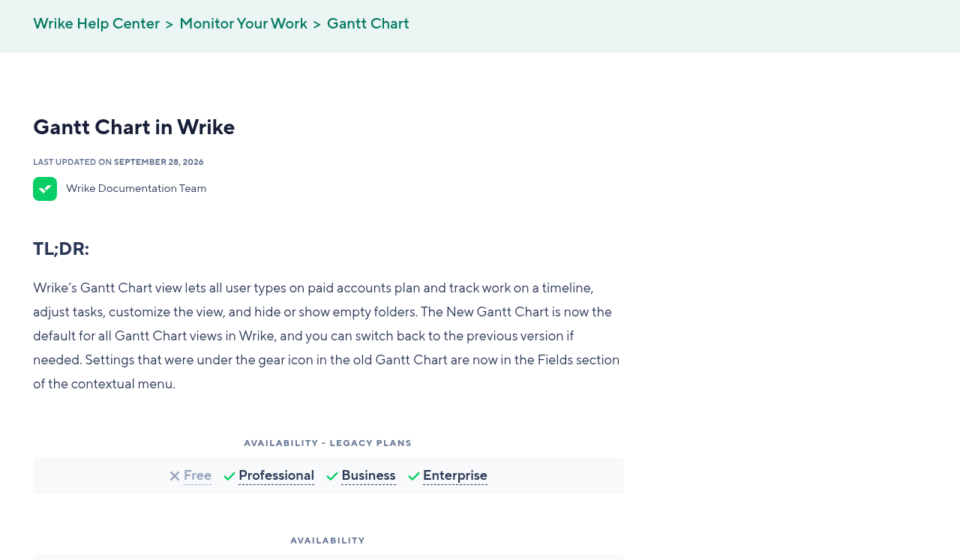
I checked every claim below against Wrike’s help center and release notes on October 18, 2026. The main sources are Gantt Chart in Wrike, Baseline Tracking, What’s New in Wrike, June 2026 and What’s New in Wrike, September 2026. Prices come from wrike.com/price.
An older version of this page listed features such as “AI risk flags,” a “triple baseline” and a “minimap.” I could not find any of them in Wrike’s docs, so they are gone from this guide.
What is new in the 2026 Gantt
Wrike rebuilt its Gantt view and switched everyone to it in June 2026. You can still switch back to the old one for now. Here is what the new view adds:
- Speed. Wrike lists better performance and scaling on big projects.
- Public links and public snapshots. Share a read-only timeline with people outside Wrike.
- PDF export. One click from the globe icon in the toolbar (Business and up).
- Float on the critical path. The critical path is the chain of tasks that sets your finish date. Total Float and Free Float now show as columns and on the chart. Negative float means a task is already late.
- Fiscal year support, manual row ordering and new sorting options.
- Successors column (September 2026). It mirrors the Predecessors column. You can type a row number and a link type, like
9SS+2d, right in the cell. - Start constraints (September 2026). Pin a task so it cannot start before a set date. A solid line marks it on the bar.
- Shift-drag (September 2026). Hold Shift while you drag a task, and every linked task after it moves too, with the gaps kept.
One setting moved. The old gear icon is gone. Column settings now live under Fields in the toolbar.
Which plan includes what
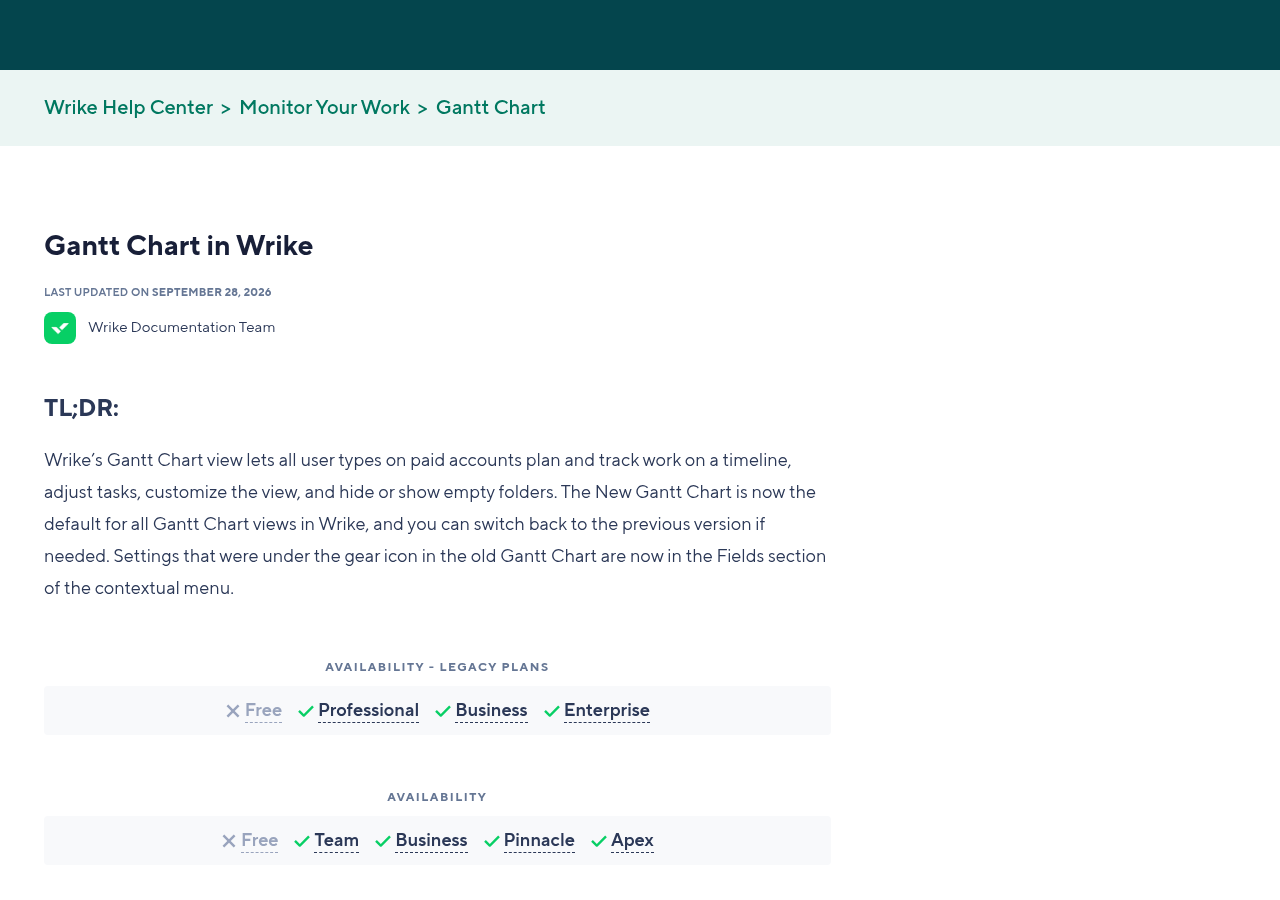
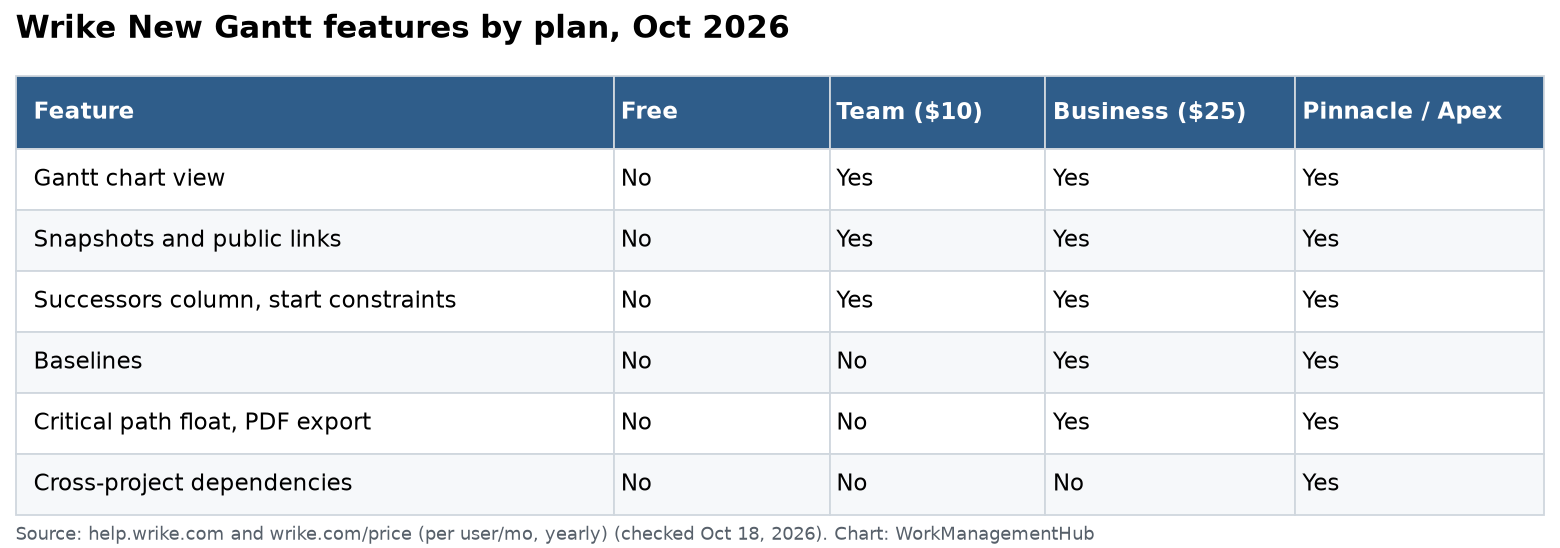
This is where most buyers get caught. The Gantt view itself is on every paid plan. The planning tools that make it useful for real schedules start on Business.
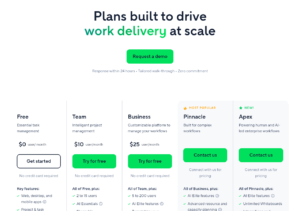
Prices on Wrike’s pricing page today:
| Plan | Price (per user a month, billed yearly) | Seats |
|---|---|---|
| Free | $0 | No Gantt chart |
| Team | $10 | 2 to 15 users |
| Business | $25 | 5 to 200 users |
| Pinnacle | Quote | No stated cap |
| Apex | Quote | No stated cap |
My advice: if you manage client deadlines or a PMO, plan on Business. Team gives you the bars and dependency lines, but no baseline. Without a baseline you can’t prove how far a project slipped from the plan.
How to set a baseline
A baseline is a frozen copy of your original plan. Wrike stores four values for each item: baseline start, baseline due date, baseline duration and Baseline due variance. That last one is a formula field. It shows how many days the due date moved.
- Open the project and switch to Gantt Chart (or Table view).
- Click the three-dot menu in the toolbar and pick Set baseline.
- Choose the source. From current state uses today’s dates. From history uses dates from a past day.
- Choose the scope. Current item and all its subitems sets or resets the baseline. Only items without a baseline adds new work without touching the old numbers.
- Click Set baseline.
To see it, open the three-dot menu and turn on Baseline. The plan shows as a dark line on each bar. Turn on Baseline delay warnings to color late items red. By default any one-day slip turns red. Use Configure delay warnings to raise that, say to 5 days, so the chart isn’t a sea of red.
Gotcha: resetting with “Current item and all its subitems” overwrites old values, including hidden subitems. Wrike says you can’t undo it. Use “Only items without a baseline” when you add new tasks mid-project.
Who can do it: a person needs the Set baseline permission in both their user type and their access role. By default that means admins and regular users with Full or Editor access. Collaborators, Contributors and Viewers can’t set one.
Baselines vs snapshots
They sound alike, but they do different jobs.
- A baseline is your official plan. Its fields work in Table view, dashboards, filters and Analyze. You get one baseline per item.
- A snapshot is a picture of the Gantt at one moment. It lives only in the Gantt view. You can make as many as you like, from today or from a past date.
Wrike’s own tip: use the baseline as the contract and snapshots as checkpoints. A simple habit is one snapshot at each phase gate, like “Design approved.” Then you can show a client what the plan looked like that day.
How to share a public snapshot
- In Gantt, click the Public sharing (globe) icon and pick Share public snapshot.
- Name it and pick From current state or From project history.
- Tick Share with public link. Untick Show assignee names if the viewer is outside your company.
- Click Create and copy the link.
Privacy tip: anyone with a public link can open it. Don’t share snapshots with staff names or internal task titles you’d rather keep private. Rename tasks first, or hide names.
Cross-project links on Pinnacle and Apex
On September 28, 2026, Wrike added project-to-project dependencies in the Gantt view. You can link whole projects, see each project’s milestones on its bar, and switch to Show milestones only for a clean program view. When an upstream project slips, the downstream one shows which project caused it and about how many days of delay. Nothing moves on its own. You get a conflict flag and decide.
This is only on Pinnacle and Apex. If you run a portfolio on Business, you still need to link tasks, not projects.
Honest pros and cons
Pros – Faster, cleaner timeline on large projects – Float columns make the critical path easy to read – Snapshots and public links help with client reporting – Successors column and inline link editing save clicks
Cons – Baselines, float and PDF export need Business ($25) – Project-level dependencies need a Pinnacle quote – Only one baseline per item, and resets can’t be undone – No Gantt at all on Free
When Wrike’s Gantt is the wrong pick
If you only need a simple timeline for a small team, Wrike Team works, but so do cheaper tools. If you need baselines on a budget, compare our Smartsheet Gantt chart guide and our ClickUp Gantt chart guide. If your team lives in boards, see our monday.com Gantt guide. For the full cost picture, read our Wrike pricing guide.
Common questions
Is the New Gantt Chart available on Wrike’s Free plan?
No. Wrike’s help center lists the Gantt Chart view on Team, Business, Pinnacle and Apex only. Team costs $10 per user a month billed yearly.
Can I still use the old Wrike Gantt chart?
Yes, for now. The New Gantt became the default in June 2026, but Wrike’s help page says you can switch back to the previous version if needed.
What plan do I need for baselines in Wrike?
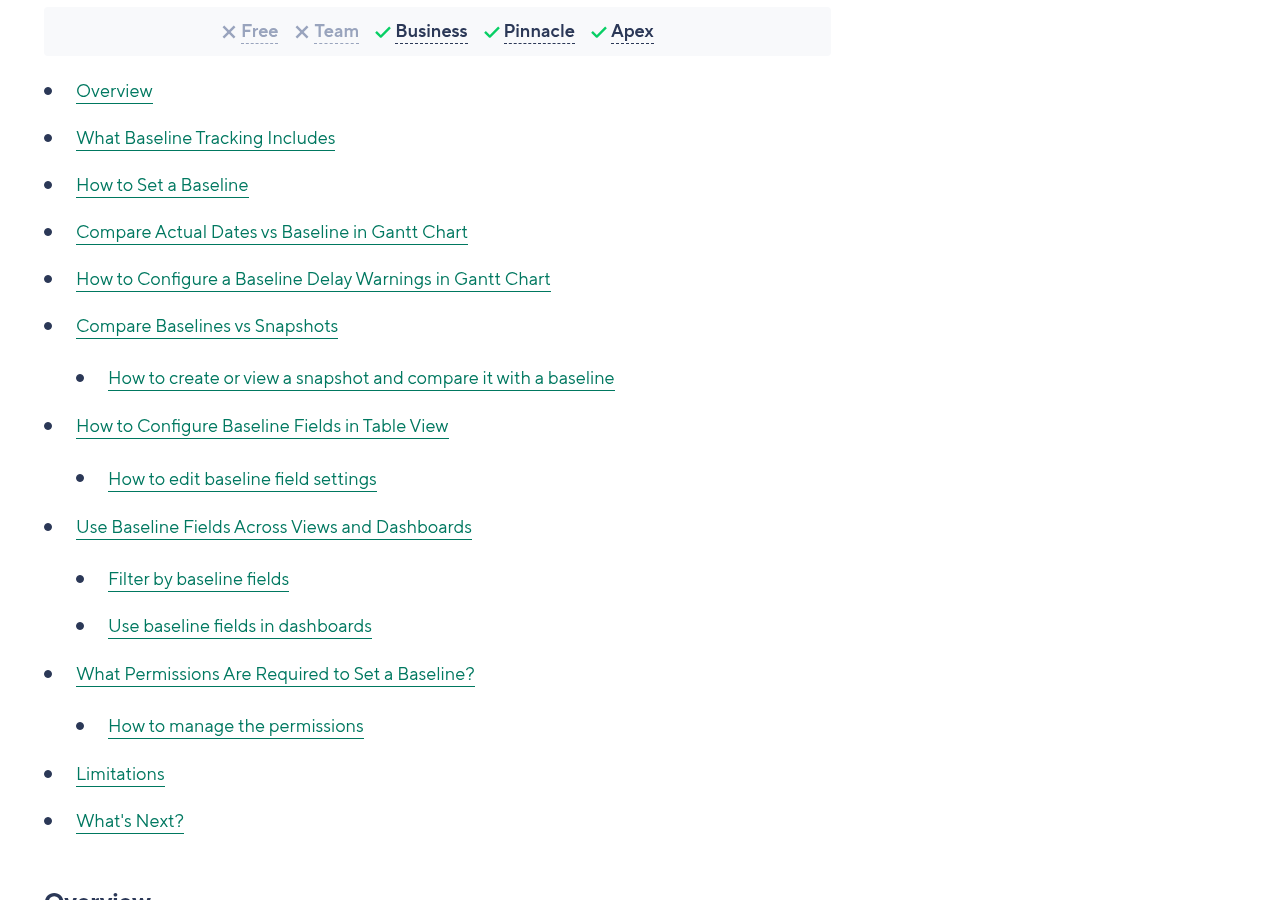
Business or higher. Wrike’s Baseline Tracking article lists Business, Pinnacle and Apex. Business costs $25 per user a month billed yearly for 5 to 200 users.
What is the difference between a baseline and a snapshot in Wrike?
A baseline is one saved plan per item that you can report on in tables, dashboards and filters. A snapshot is a picture of the Gantt at a moment in time, and you can make as many as you need.
Can Wrike link dependencies between projects?
Yes, since September 28, 2026, but only on Pinnacle and Apex. On other plans you link tasks, not whole projects.
Features and prices checked on help.wrike.com and wrike.com/price on October 18, 2026.
Sponsored