Jira Permissions Not Working? 8 Fixes for the Most Common Access Issues in 2026
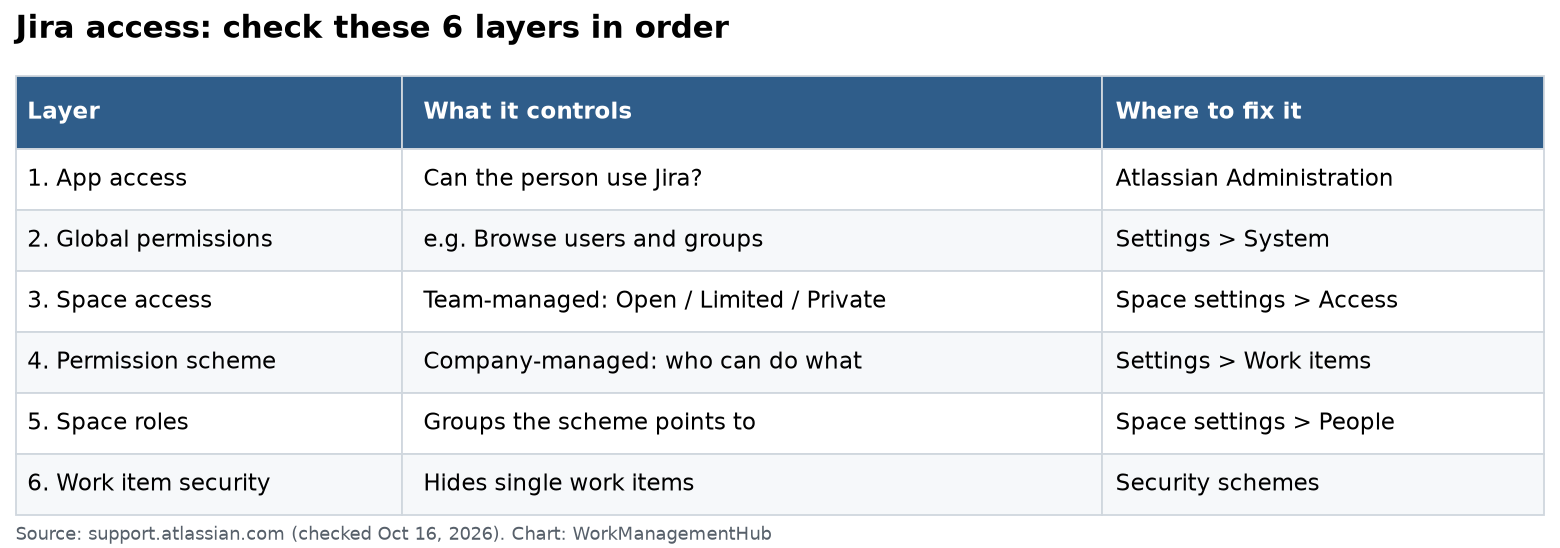
- The single most common cause of Jira permissions failures is a user being assigned to the wrong Project Role — global admin rights do not automatically grant project-level access.
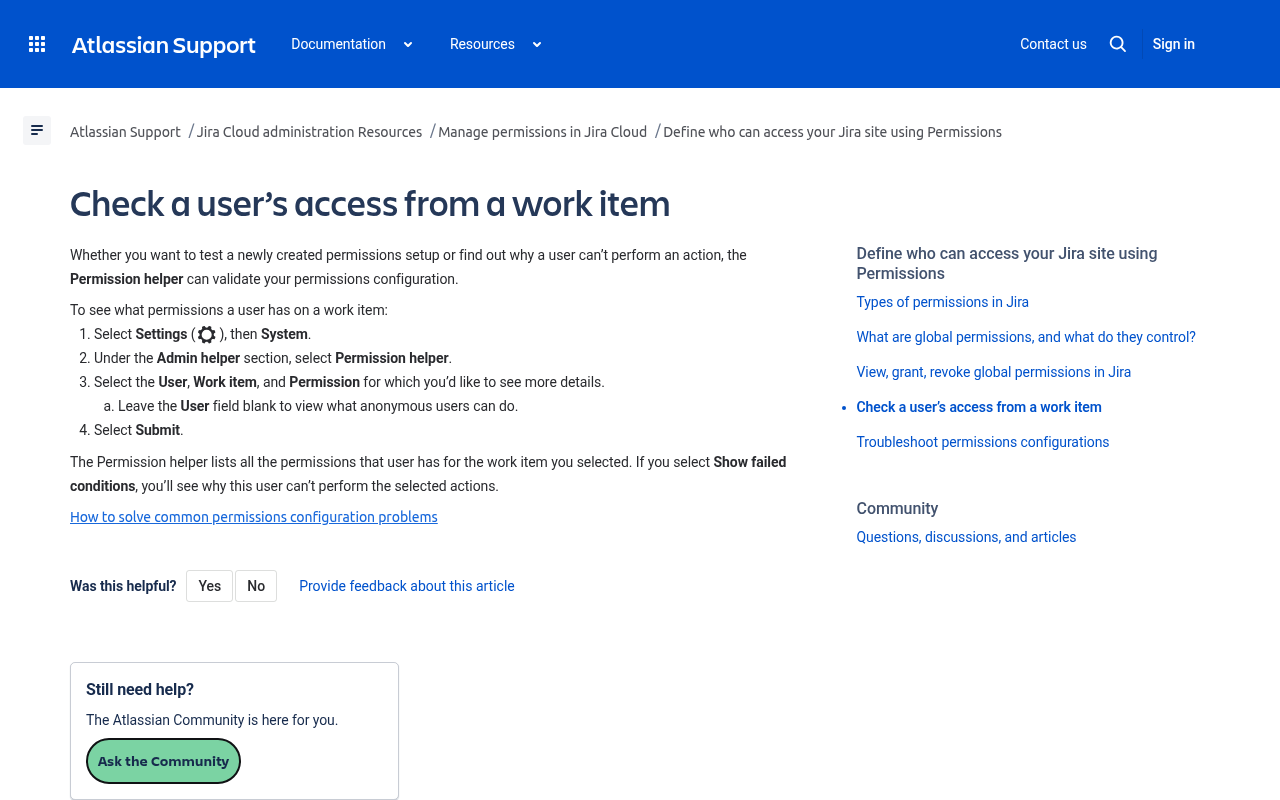
- Jira’s built-in Permission Helper tool (Project Settings → Permissions → Permission Helper) pinpoints exactly why a user is blocked — most admins have never used it.
- Team-managed (next-gen) projects use a completely separate 3-role model that ignores global permission schemes — fixes that work in company-managed projects won’t transfer.
- In 2026, Atlassian added granular role customization to team-managed projects, so you no longer have to upgrade to company-managed just for fine-grained access control.
- Issue security schemes, workflow transition conditions, and browser-cached sessions each cause their own distinct class of permissions failures — knowing the difference cuts resolution time from hours to minutes.
Jira permissions stop working when a user is in the wrong Project Role, the permission scheme is misconfigured, or there is a mismatch between company-managed and team-managed project models. Start by running the Permission Helper (Project Settings → Permissions → Permission Helper) to identify the exact broken rule, then correct the Project Role, scheme, or issue security level accordingly.
- Fix 1: User Is in the Wrong Project Role (or No Role at All)
- Fix 2: Use the Permission Helper to Find the Exact Break
- Fix 3: Team-Managed Project Permission Model Mismatch
- Fix 4: Wrong or Broken Permission Scheme Applied to the Project
- Fix 5: Issue Security Scheme Blocking Specific Issues
- Fix 6: Workflow Transition Conditions Overriding Permissions
- Fix 7: User Group or Directory Sync Problems
- Fix 8: Stale Browser Cache or Session Token
- Verdict
- Frequently Asked Questions
Jira Permissions Not Working? 8 Fixes for the Most Common Access Issues in 2026
You’ve triple-checked the permission scheme. The user should have access. Yet they’re still getting a “You don’t have permission” error in Jira — and your Slack is filling up with “Can you fix this?” messages. After resolving hundreds of these issues across enterprise Jira instances, I can tell you: the answer is almost never where you’re looking. This guide cuts straight to the eight root causes, with exact UI paths and step-by-step fixes for both company-managed (classic) and team-managed (next-gen) projects.
Fix 1: Jira Permissions Not Working — Wrong or Missing Project Role
Symptom: A user can log in to Jira, navigate to the project, but cannot view issues, create tickets, or transition work items — even though they appear to have global access.
Root cause: This is the number one cause of Jira permissions failures. Jira’s permission system is role-based: global permission schemes define what actions are allowed, but Project Roles define who those permissions apply to. A user who is a Jira administrator at the site level still needs to be explicitly added to a project-level role (typically Developer, Service Desk Team, or your custom role) before those scheme permissions apply to them. Being a site admin bypasses this — but being a Jira project admin does not automatically grant access to every project.
Fix steps (Company-managed / Classic projects):
- Navigate to your project and click Project Settings in the left sidebar.
- Select People (or Members depending on your Jira version).
- Click Add members in the top-right corner.
- Search for the affected user by name or email address.
- In the Role dropdown, select the appropriate role — most commonly Developer for standard contributors or Service Desk Team for JSM projects.
- Click Add to confirm. The user’s access updates immediately — no cache clear required.
- Have the user refresh their browser and attempt the blocked action again to confirm resolution.
Important distinction: In the permission scheme editor (Project Settings → Permissions), each permission row lists which roles, groups, or users it applies to. If the “Browse Projects” permission only grants access to the Developer role, a user assigned only to the Viewer role will be locked out entirely. Always cross-reference the permission scheme rows against the user’s actual role assignment.
Add user groups (rather than individual users) to project roles. This way, adding a new team member to the group automatically grants project access without requiring an admin to touch every project individually. See our guide on Jira automation rules for how to automate group membership updates.
Fix 2: Use the Permission Helper to Find the Exact Break
Symptom: You’ve checked the permission scheme and the user’s role, but you still can’t identify why a specific action is blocked. The issue feels impossible to diagnose without staring at permission rows for 30 minutes.
Root cause: Most Jira admins don’t know the Permission Helper tool exists. It is Jira’s built-in diagnostic that evaluates a specific user against a specific permission and returns a plain-English explanation of exactly why access is granted or denied. It accounts for roles, groups, issue security levels, and scheme entries simultaneously — saving you from having to mentally cross-reference all of those yourself.
Fix steps (Company-managed projects only — the Permission Helper is not available in team-managed projects):
- Go to the affected project and open Project Settings.
- Click Permissions in the left sidebar to open the permission scheme view.
- At the top-right of the Permissions page, click the Permission Helper button. (If you don’t see it, confirm you are a Jira Administrator — only admins see this button.)
- In the User field, type the name or email of the affected user.
- In the Permission dropdown, select the specific permission they’re failing to exercise — for example, Create Issues, Transition Issues, or Browse Projects.
- Optionally, select a specific Issue if the problem is isolated to certain tickets (this will also check issue security levels).
- Click Submit. Jira returns either “User has permission” or a detailed breakdown of why they don’t — including which scheme entry is failing and which group or role is the missing link.
- Use that output to target your fix precisely: add the user to the named role, adjust the scheme entry, or modify the issue security level as directed.
The Permission Helper is also invaluable for auditing access before a project launch. Run it against each permission type for a sample user from each role to verify the scheme behaves exactly as intended. For more advanced project configuration techniques, see our Jira Service Management ITSM setup guide.
Fix 3: Team-Managed Project Permission Model Mismatch
Symptom: A fix that worked perfectly in a company-managed project does nothing in a team-managed (next-gen) project. The Permission Helper button is missing. Global permission scheme changes have no visible effect.
Root cause: Team-managed projects operate on a completely independent permission model. They do not inherit from global permission schemes at all. Instead, they use a simplified 3-level access model: Viewer (read-only), Member (can create and edit issues), and Admin (full project control). Any time spent editing global schemes to fix team-managed project access is wasted effort. In 2026, Atlassian added granular role customization to team-managed projects, allowing project admins to define what specific actions each role can perform — but this is still configured at the project level, not in the global scheme editor.
Fix steps for team-managed projects:
- Open the team-managed project and go to Project Settings → Access.
- Review the Access level setting at the top of the page. Options are: Private (only added members), Anyone on this site, or Anyone on this site can view. Select the appropriate level for your use case.
- Scroll down to the member list. Click Add people and search for the affected user.
- Assign them the correct role: Viewer, Member, or Admin.
- If you need more granular control beyond the 3-role model (available in 2026), click Customize roles within the Access settings. Here you can enable or disable specific actions (e.g., delete issues, manage sprints) per role.
- Confirm that the project’s access level is not set to Private when you intend it to be accessible to all site members — this is a common setup error when projects are initially created.
- Company-managed: uses global permission schemes, supports Permission Helper, supports issue security schemes, supports complex workflow conditions.
- Team-managed: uses local access settings only, no global scheme inheritance, no Permission Helper, simplified role model (now customizable in 2026).
- You cannot convert a team-managed project to company-managed without recreating it — plan your project type before launch.
For a full breakdown of how Jira’s project models compare to competing tools, see our Jira vs. Linear 2026 comparison.
Fix 4: Wrong or Broken Permission Scheme Applied to the Project
Symptom: Multiple users across different roles are all experiencing permissions failures in the same project. The issues started after a recent admin change or project migration.
Root cause: A project was assigned the wrong permission scheme, or someone edited the shared scheme in a way that broke multiple projects simultaneously. In Jira, permission schemes are shared resources — editing “Software Development Permission Scheme” affects every project using it. A missing “Browse Projects” or “Create Issues” entry in the scheme is enough to lock out an entire team.
Fix steps (Company-managed projects):
- Go to Jira Settings (cog icon, top-right) → Issues → Permission Schemes.
- Locate the scheme assigned to the affected project and click Permissions next to it.
- Scan for critical missing entries: Browse Projects, Create Issues, Edit Issues, Transition Issues, and Resolve Issues should each have at least one role, group, or “Any logged in user” entry.
- If a critical permission row is empty, click Add next to that permission and assign the appropriate role (e.g., “Software Developer” or “Any logged in user” for Browse Projects in internal tools).
- Alternatively, if the entire scheme is wrong, go to Project Settings → Access → Permission scheme and click Use a different scheme to swap it out. This is non-destructive — the old scheme remains available.
- After making changes, use the Permission Helper (Fix 2) to verify the corrections took effect for a sample user.
Fix 5: Issue Security Scheme Blocking Specific Issues
Symptom: A user has full project access and can see most issues, but specific tickets are invisible or return a permissions error when opened. They can create new issues but cannot see existing ones.
Root cause: Issue security schemes add an additional layer of access control below the project permission level. When a security level is set on an issue, only users who belong to that security level (via role, group, or individual user assignment) can see it. Users without the matching security membership see the issue as if it doesn’t exist. This is separate from and in addition to project-level permissions.
Fix steps (Company-managed projects only — issue security is not available in team-managed):
- As an admin, open one of the invisible issues directly via its URL or issue key.
- In the issue detail view, look for the Security Level field in the right-hand sidebar. Note the security level name (e.g., “Internal Only,” “Executive,” “Confidential”).
- Go to Jira Settings → Issues → Issue Security Schemes and open the scheme used by this project.
- Find the security level from step 2 and click Edit. Add the affected user, their group, or their project role to this security level.
- If this is a broad access issue (most users should see these issues), consider removing the security level from the affected issues entirely: bulk-edit the issues via the issue navigator and clear the Security Level field.
- Run the Permission Helper with a specific issue selected (step 6 in Fix 2) to confirm the security level was the blocking factor and that it is now resolved.
Issue security schemes are frequently misconfigured during Jira Service Management setups. Our JSM ITSM setup guide covers security scheme best practices for service desks in detail. For the official Atlassian reference on issue-level security, see the Atlassian documentation on issue-level security.
Fix 6: Workflow Transition Conditions Overriding Permissions
Symptom: A user has the “Transition Issues” permission in the scheme, but specific workflow buttons (e.g., “Deploy,” “Close,” “Approve”) are greyed out or not visible to them. Other users can see and use these transitions.
Root cause: Workflow transitions can have Conditions attached to them that restrict who can trigger that specific transition — independent of the global permission scheme. Common conditions include “User is in role,” “User is assignee,” or “Field has a specific value.” These conditions operate at the workflow level and are invisible to anyone not actively inspecting the workflow editor. They are one of the most overlooked causes of transition-specific permissions failures.
Fix steps (Company-managed projects):
- Go to Project Settings → Workflows.
- Find the workflow associated with the issue type where the transition is blocked, and click the pencil/edit icon to open it (you may need to create a draft if the workflow is shared).
- Click on the specific transition arrow (e.g., the arrow from “In Review” to “Done”) that is blocked.
- In the transition panel, click the Conditions tab. Review any listed conditions.
- Identify conditions that exclude the affected user — for example, “Only the Assignee can perform this transition” or “User must be in role: Senior Developer.”
- Either remove the restrictive condition, adjust its parameters to include the correct roles, or add the user to the role referenced by the condition.
- Publish the workflow draft and test by having the user attempt the transition again.
Workflow conditions are also frequently used to enforce business logic in automation. Review our Jira automation rules setup guide to understand how automation post-functions interact with transition-level conditions.
Fix 7: User Group or Directory Sync Problems
Symptom: A user’s access worked yesterday but stopped working today without any admin changes. Or a new user’s onboarding completed but they cannot access projects that their team members can. The Permission Helper shows they should have access.
Root cause: When Jira is integrated with an external user directory — Microsoft Entra ID (formerly Azure AD), Okta, Google Workspace, or an on-premises Active Directory via Jira Data Center — group membership is synchronized on a schedule, not in real time. A user added to a group in Azure AD may not appear in that group within Jira for minutes to hours. Similarly, a user removed from a group is not immediately locked out. Stale sync state is the cause, not a permission scheme error.
Fix steps (Jira Cloud with Atlassian Access / SCIM):
- Go to admin.atlassian.com → select your organization → Security → Identity providers.
- Check the Last sync timestamp. If it’s older than expected, a sync may have failed silently.
- Trigger a manual sync from your identity provider side (e.g., in Azure AD, open the Enterprise Application for Atlassian Cloud and click Provision on demand for the specific user).
- After the sync completes, go to Jira Settings → User Management → search for the affected user and verify their group memberships match what is configured in the IdP.
- If groups look correct but access is still broken, check whether the Jira project role references the group by the exact name used in Jira (not the IdP display name — they can differ after a rename).
Fix steps (Jira Data Center with on-premises Active Directory):
- Go to Administration → User Directories.
- Click Synchronise next to your LDAP/AD directory to force an immediate sync.
- Monitor the sync log for errors — failed binds, connection timeouts, or attribute mapping mismatches are common culprits.
- After sync, search for the user and verify group membership has updated as expected.
For teams evaluating Jira’s access control model against Azure DevOps’s built-in group model, our Jira vs. Azure DevOps 2026 comparison covers the tradeoffs in depth.
Fix 8: Stale Browser Cache or Session Token
Symptom: Admin confirms the user now has access. The Permission Helper shows “User has permission.” But the user is still seeing permission errors. The issue resolves by itself the next day.
Root cause: Jira caches user permission context in the browser session token. After an admin makes a permission change, the user’s existing session may continue operating with the old permission snapshot. This is especially common in Jira Cloud after bulk permission changes, and can also occur after Atlassian Access changes propagate. It looks like a permissions bug but is a client-side caching artifact.
Fix steps:
- Ask the user to log out of Jira completely (profile icon → Log out) — not just close the tab.
- Clear browser cache and cookies specifically for the Jira domain: in Chrome, go to Settings → Privacy and security → Delete browsing data, filter by the Jira site, and clear cookies and cached images/files.
- Log back in and attempt the previously blocked action. In the majority of cases this resolves the symptom immediately.
- If the issue persists after re-login, try an incognito/private browser window — if access works in incognito, a browser extension is interfering with the Jira session.
- For persistent issues, ask the user to try a different browser entirely to rule out browser-specific session corruption.
- In Jira Data Center environments, also clear the Jira server-side cache: Administration → System → Cache statistics → Flush all caches. Do this during off-peak hours as it temporarily increases load.
For advanced querying to audit which users have specific permissions across multiple projects simultaneously, the Jira JQL advanced filters guide shows how to build permission audit queries. Atlassian’s own project permissions documentation is also a useful reference for understanding how all scheme layers interact.
Quick Diagnostic Reference: Jira Permissions Not Working
| Symptom | Most Likely Cause | Fix | Project Type |
|---|---|---|---|
| User sees no projects at all | Not added to any project role | Fix 1: Add to Project Role | Both |
| Can’t determine why access fails | Unknown — needs diagnosis | Fix 2: Permission Helper | Company-managed only |
| Scheme changes have no effect | Project is team-managed | Fix 3: Team-managed Access settings | Team-managed only |
| Multiple users affected after admin change | Shared scheme broken | Fix 4: Check/swap permission scheme | Company-managed only |
| Specific issues invisible | Issue security level set | Fix 5: Adjust issue security scheme | Company-managed only |
| Transition button greyed out | Workflow condition restricts user | Fix 6: Edit workflow conditions | Company-managed only |
| Access broke overnight, no changes made | Directory sync failure | Fix 7: Force directory sync | Both |
| Admin says fixed but user still blocked | Stale session/cache | Fix 8: Clear cache, re-login | Both |
When Jira permissions are not working, always start with the Permission Helper before touching anything else — it is the fastest path to the root cause in company-managed projects. For team-managed projects, go straight to Project Settings → Access, since global scheme changes have zero effect there. The vast majority of Jira permissions failures trace back to one of three issues: a user in the wrong Project Role, a broken or misassigned permission scheme, or a team-managed vs. company-managed model mismatch. The remaining fixes — issue security, workflow conditions, directory sync, and cache — are real but less common. Diagnose before you edit, use the Permission Helper liberally, and document any scheme changes immediately so the next admin (or future you) can trace what changed and why.
Frequently Asked Questions
Why can a Jira admin not see a project even with admin rights?
Being a Jira administrator (site admin) grants access to Jira administration settings but does not automatically add you to every project as a project member. Site admins can view any project via Administration, but to have normal project-level access — appearing in filters, seeing issues through normal project navigation — they need to be added to a Project Role just like any other user. Add them via Project Settings → People → Add members and assign the appropriate role.
What is the difference between a Jira permission scheme and a project role?
A permission scheme defines which actions are allowed in a project — for example, “Members of the Developer role can Create Issues.” A project role defines who is in that group for a specific project — for example, “Alice and Bob are Developers in the Marketing project.” The scheme sets the rules; the project role determines who the rules apply to. Both must be correctly configured for a user to have the expected access.
Can I migrate a team-managed project to company-managed without losing data?
As of 2026, Atlassian does not provide a native one-click migration path from team-managed to company-managed projects. The standard approach is to export issues (via CSV or a migration app) and import them into a newly created company-managed project. Issue history, comments, and attachments may not transfer cleanly depending on the tool used. Plan for this limitation before choosing team-managed for any complex project — if you anticipate needing fine-grained permission schemes, issue security levels, or complex workflow conditions, start with a company-managed project from day one.
How do I audit which users have access to a specific Jira project?
For company-managed projects, go to Project Settings → People to see all users and groups assigned to each project role. Cross-reference this with the permission scheme (Project Settings → Permissions) to understand what each role can do. For a more systematic audit across many projects, use the Atlassian permission reports available in Jira Settings → Issues → Permission Schemes — click “Schemes used in” on any scheme to see all projects using it and which roles are populated.
Why do Jira permissions work in one browser but not another?
Cross-browser inconsistency almost always indicates a stale session cookie or browser extension conflict in the failing browser, not an actual permission problem. The session cookie in the problematic browser contains an outdated permissions snapshot from before the admin made changes. Clear cookies and cached files for the Jira domain in the affected browser, log out completely, then log back in. If the problem was browser-specific, it will be resolved. If it persists across all browsers after fresh logins, the issue is server-side and you should revisit Fixes 1 through 7.