Skip to content
Work Management Hub Work Management Hub

Expert Reviews, Comparisons & Guides for Smartsheet, Monday.com, Asana, ClickUp & More

Work Management Hub Work Management Hub

Expert Reviews, Comparisons & Guides for Smartsheet, Monday.com, Asana, ClickUp & More

  • Airtable
  • Asana
  • ClickUp
  • Jira
  • Monday.com
  • Notion
  • Smartsheet
  • Wrike
  • About
  • Contact
  • Airtable
  • Asana
  • ClickUp
  • Jira
  • Monday.com
  • Notion
  • Smartsheet
  • Wrike
  • About
  • Contact
Close

Search

How-To GuidesWrike

Wrike Proofing and Approvals Guide 2026: Set Up Review Workflows for Creative Teams

By Khasim
June 4, 2026 11 Min Read
0

Imagine you’re leading a creative team juggling multiple projects with tight deadlines. Every team member is inundated with missions needing feedback and sign-offs, yet traditional email chains drown critical nuances in a flood of replies. This is where Wrike’s Proofing and Approvals can streamline your workflow, but only if you’re on the right plan. Getting stuck on the Free or Team tiers means missing out; you’d need to upgrade to at least the Business plan where Proofing and Approvals actually function. This decision, an investment at a minimum of $10 per user/month, quickly pays off when you consider the chaos it eliminates from your project’s review process.

However, while the features promise efficiency, they come with caveats. Proofing supports a wide array of file types, but if your team relies on Dropbox or Box for cloud storage, expect disruptions—only Bynder, MediaValet, and SharePoint are compatible. Similarly, you’ll need to remember that approvals can’t be applied to spaces, limiting them to tasks, folders, or projects. These nuances define whether Wrike transforms your workflows or entangles them further. Knowing these limitations before diving in can make all the difference between reducing bottlenecks or breeding new ones.

Introduction to Wrike Proofing and Approvals

For creative teams juggling multiple assets, Wrike’s Proofing and Approvals features are indispensable tools designed to streamline review processes and enhance collaboration. Before diving into setup, it’s crucial to understand the terrain these features cover, especially the pitfalls that can disrupt workflow if unnoticed.

Proofing in Wrike enables direct commenting on various file types, including images, videos, and Office documents. This is a strategic advantage when managing visual content, allowing teams to centralize feedback and minimize email back-and-forth. However, a key limitation surfaces with file sources; proofing is only compatible with uploads from local storage, Bynder, MediaValet, and SharePoint. If your assets are stored in Dropbox or Box, you’ll need to adjust your storage strategy or risk operational inefficiencies.

Approvals, on the other hand, bring clarity to decision-making by allowing teams to formalize approval processes for tasks, folders, and projects. Note that this doesn’t extend to spaces, which can be a stumbling block if your team heavily utilizes them for organizational purposes. Therefore, it’s imperative to tailor your Wrike setup to maximize these features’ utility, perhaps by restructuring how you group projects and tasks.

One notable gap is the absence of an “Approved with Changes” option, which could ideally streamline minor revisions without another review cycle. Teams accustomed to this flexibility may need to adjust workflows or develop alternative feedback mechanisms. Moreover, hyperlinks in PDFs are inactive during Proofing, requiring manual cross-referencing if linked content is crucial.

For teams operating within the Business tier and above, understanding these nuances is key to leveraging Wrike’s full potential, turning potential gotchas into informed decisions to bolster productivity and creativity.

Plan Tiers and Feature Availability

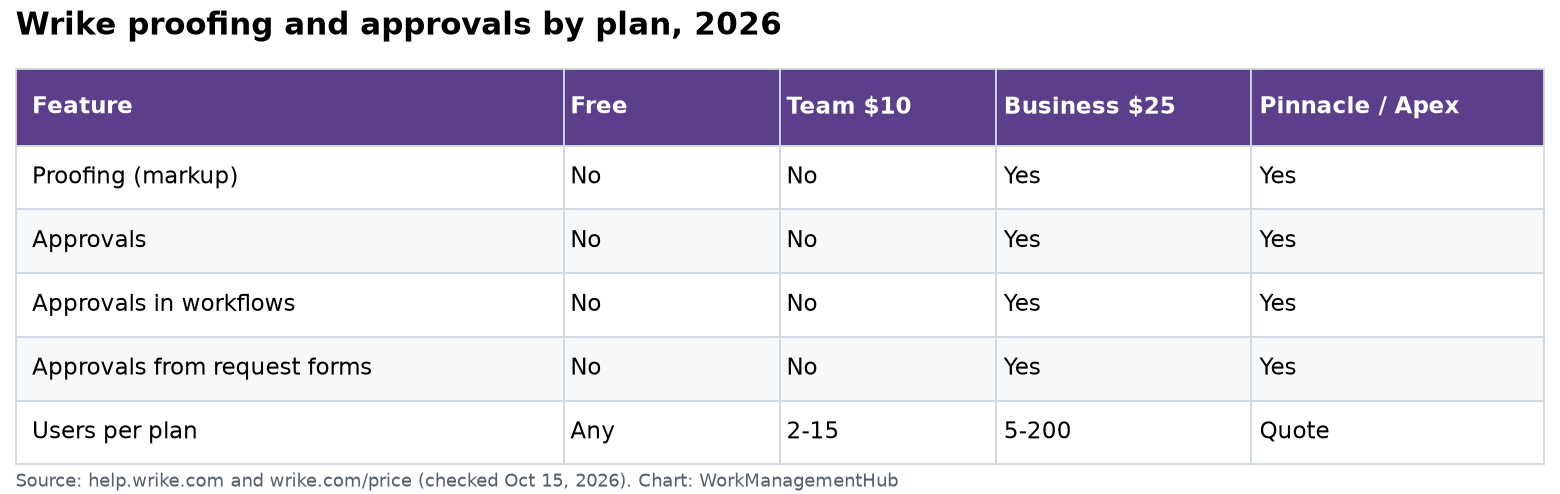
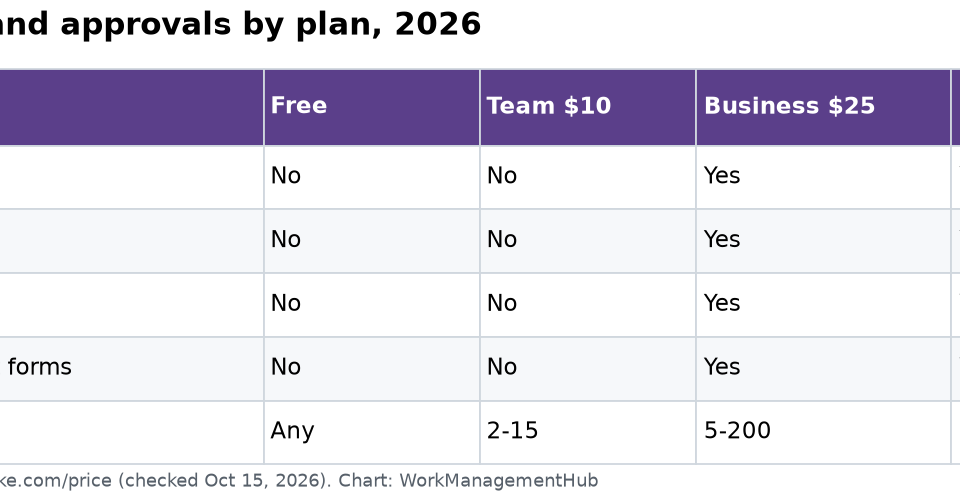
Plan TierProofingApprovalsPricing (per user/month)
FreeNoNo$0
TeamNoNo$10
BusinessYesYesContact for pricing
PinnacleYesYesContact for pricing
ApexYesYesContact for pricing

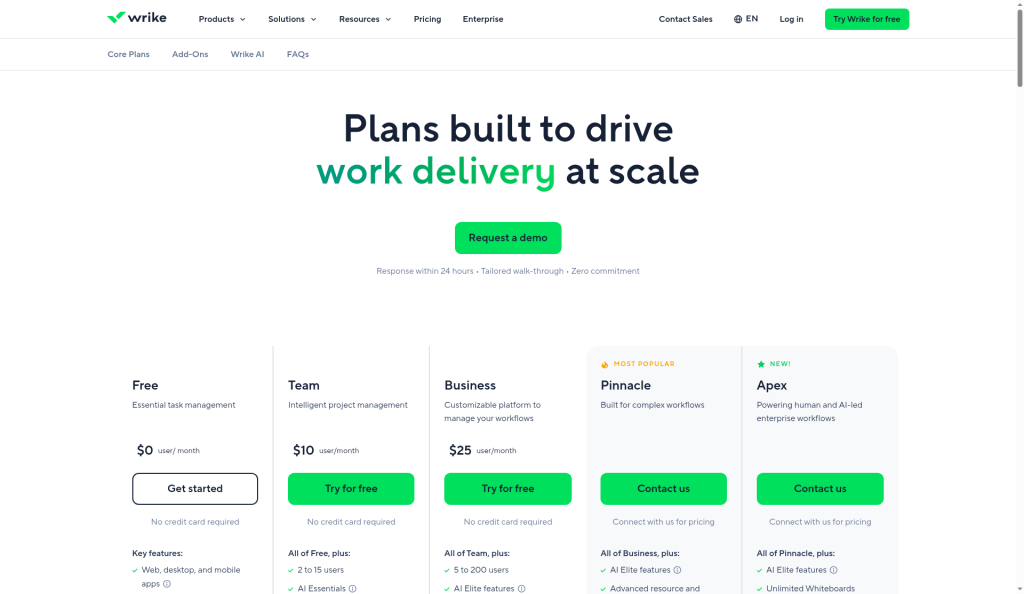
Wrike’s Proofing and Approvals features are strategically reserved for the Business tier and above, making them inaccessible on the Free and Team plans. If your team heavily relies on these functionalities for creative review workflows, the Business plan or higher is essential. With features like direct commenting on a wide array of file types and seamless integration for approval tasks within projects, these plans facilitate efficient creative processes. However, for smaller teams with limited budget or simpler needs, the Team plan might suffice, albeit without these advanced tools. Always consider the scope of your team’s workflow before committing to a higher tier. For detailed feature specifics, see the official Wrike documentation.

Setting Up Proofing Processes

When establishing proofing processes in Wrike, creative teams need to focus on tailoring the workflow to their specific content types and review cycles. The first step is understanding that Proofing is only available on Business, Pinnacle, and Apex plans. If you’re on the Team or Free plan, you’ll need to upgrade to access these capabilities.

For teams handling a variety of file types, it’s crucial to leverage Wrike’s compatibility with formats such as PDFs, images, Microsoft Office files, and videos. Note that hyperlinks in PDFs will be inactive in Proofing, so plan accordingly if your workflow depends on hyperlink functionality.

Setting up the process involves several detailed steps:

  1. File Upload — Ensure files are sourced from compatible storage options like local storage, Bynder, MediaValet, or SharePoint. Wrike doesn’t support proofing for files directly from Dropbox or Box. Learn more.
  2. Navigate to Item — Open the task, folder, or project that requires proofing.
  3. Initiate Proofing — Use the “Proofing” section to start the process. Here, reviewers can comment directly on the content, providing precise feedback.

The absence of an “Approved with Changes” option is a limitation when minor changes are needed without triggering a full review cycle. Teams should communicate this constraint to stakeholders to manage expectations.

Additionally, be aware that in certain custom item types (CITs), the Approval tool may be hidden, which might require adjustments to your CIT settings.

Ultimately, setting up effective proofing processes in Wrike demands a keen understanding of these limitations and strategic planning to work within them, ensuring a seamless review experience for your creative team.

Implementing Approval Workflows

For creative teams leveraging Wrike, implementing approval workflows requires more than just knowing the features—it’s about embedding them into your daily operations efficiently. Before diving into the setup, ensure your team is on at least the Business plan, as Proofing and Approvals aren’t available on the Free or Team plans.

When setting up approval workflows, focus on integrating them into your existing project structures. Here’s a step-by-step guide to get you started:

  1. Navigate to the target folder or project — Ensure you select the correct item to avoid organizational chaos later. Approval workflows are only applicable to tasks, folders, or projects, not spaces.
  2. Open the item in item view — This grants you access to all the relevant options needed to set up approvals.
  3. Click on the “Approvals” section — Here, you can add and define the approval steps necessary for your project. This step is crucial for establishing clear checkpoints for your team.

Keep in mind that the “Approved with Changes” feature is not yet available, which could necessitate additional review cycles if minor adjustments are needed. This can be a bottleneck, especially when multiple stakeholders are involved.

To mitigate common issues, educate your team about the supported file types and upload sources. Proofing works smoothly with local uploads and specific integrations like SharePoint and Bynder, but not with Dropbox or Box.

Finally, ensure that your team understands the limitations, such as inactive hyperlinks in PDFs during proofing, which might affect documentation-heavy projects. For more details on setting up approvals, check the official guide.

Successful implementation hinges on clear communication and setting realistic expectations. Regularly update your processes to align with Wrike’s feature updates and user feedback for optimal workflow efficiency.

Navigating the User Interface

Understanding Wrike’s user interface for Proofing and Approvals is essential to maximize team efficiency. While intuitive, there are specific paths and nuances that can save time and avoid common pitfalls.

For initiating an approval process, follow these steps precisely to ensure seamless operation:

  1. Navigate to the desired folder or project — Access is limited to these areas; spaces are not supported. This is a crucial distinction that can lead to confusion if overlooked.
  2. Open the item in view — This is your workspace for setting approvals. Ensure the item is fully loaded to avoid any UI glitches.
  3. Click on the “Approvals” section — It’s easy to miss this section if you’re new to Wrike’s interface. Look for it in the panel on the right-hand side of the item view. Official guide here.

When proofing, remember that file compatibility is key. Ensure the files are uploaded directly from local storage or compatible cloud services like SharePoint. This avoids the frustration of discovering unsupported files mid-task.

One non-obvious detail is the inactivity of hyperlinks in PDF files during proofing. If your document relies on clickable links for context, you’ll need to supplement this with annotations or direct reviewers to external documents.

While navigating the UI, be aware of the potential for hidden tools in Custom Item Types. These can inadvertently render the approval tool inaccessible, a nuance that can derail workflows if not preemptively checked.

By adhering to these guidelines and being aware of these potential snags, navigating Wrike’s Proofing and Approvals interface can become a streamlined process, empowering teams to focus on creativity over logistics.

Common Failure Modes and Solutions

When using Wrike’s Proofing and Approvals, I’ve seen teams stumble over a few recurring issues—let’s break them down and tackle them head-on with practical fixes.

One common snag is the inability to add approvals to spaces. This is because approvals are limited to tasks, folders, or projects. If your workflow involves spaces, you’ll need to adjust your structure:

  1. Convert — Turn your space into a folder or project where applicable.
  2. Navigate — Open the relevant folder or project.
  3. Add — Click on the “Approvals” section to set it up ([source]).

Another point of friction is file compatibility in proofing, especially with cloud storage platforms. Wrike works seamlessly with files from local storage, Bynder, MediaValet, and SharePoint. However, Dropbox and Box aren’t supported, which can be a major roadblock. To circumvent this, ensure files are either uploaded locally or stored in a compatible service. If you’re committed to using Dropbox or Box, you’ll need to download and manually upload files into Wrike.

One subtle, yet frustrating, issue is that hyperlinks within PDFs are inactive when viewed in Proofing. This limitation can obstruct team members who rely on embedded links for quick access to resources. For these scenarios, consider supplementing your PDF with a document that lists hyperlinks separately or use an external viewer for link access.

Lastly, the “Approved with Changes” feature is notably absent in Wrike, which can prolong the review process. As a workaround, clearly communicate any minor change requests in the comments to avoid unnecessary review cycles. While not ideal, this ensures the workflow continues smoothly without waiting for feature updates.

Understanding Non-Obvious Gotchas

Navigating Wrike’s Proofing and Approvals features can be tricky due to several non-obvious gotchas that aren’t immediately apparent. One major oversight is the absence of an “Approved with Changes” option. This is a frequent user request, as it would streamline workflows by allowing minor adjustments without restarting the entire review cycle. Currently, this forces teams to engage in cumbersome workaround methods that can delay project timelines. Monitoring Wrike’s community forums might provide updates on potential feature implementations (source).

Another critical issue is that hyperlinks are inactive when viewing PDFs in Proofing. This limitation can hinder collaborative discussions, especially when reviewing marketing materials or interactive documents. To mitigate this, consider annotating these links separately and ensuring reviewers have access to the original, interactive files outside of Wrike.

Proofing in Custom Item Types (CITs) also presents challenges. The Approval tool can be hidden due to specific settings in CITs, leading to confusion and project delays. It’s essential to review CIT configurations before initiating proofing processes to ensure all necessary tools are visible and accessible.

Lastly, be aware that proofing supports files from local storage, Bynder, MediaValet, and SharePoint, but not from Dropbox or Box. If your workflow relies on these platforms, plan for alternative file hosting solutions to avoid disruptions.

Addressing these nuances proactively can significantly enhance your team’s efficiency in using Wrike for proofing and approvals. Stay informed of platform updates and engage with user forums to anticipate changes and adapt your processes accordingly.

Optimizing for Creative Teams

Wrike’s Proofing and Approvals features can transform how creative teams manage their workflows, but leveraging these tools effectively requires careful setup and understanding of the platform’s nuances. For creative teams, often dealing with a multitude of file types and frequent feedback cycles, Wrike’s Business plan and above are essential. If you’re on a Free or Team plan, it’s time to consider upgrading to access these critical features.

To optimize Proofing for creative teams, ensure all supported file types are utilized. This includes not only common formats like JPEG or PDF but also more specialized types like PSD or SVG. For video content, leverage the support for MP4 and even YouTube videos, which can dramatically streamline video review processes. However, watch out for the restriction on cloud storage integrations; files need to be locally uploaded or sourced from compatible platforms like SharePoint.

Approvals, on the other hand, are most effective when integrated directly into the existing folder and project hierarchy. Avoid trying to attach approvals to spaces, a common misstep that leads to confusion. Instead, configure your tasks so that approvals are a natural part of the workflow.

The lack of an “Approved with Changes” option is a notable omission that can hinder the review process. As a workaround, establish a consistent communication protocol with your team. Use comment threads to specify minor change requests and mark tasks as approved only when absolutely necessary.

To streamline these processes, regularly audit your folder structures and ensure that each project follows a consistent approval pathway. This significantly reduces the back-and-forth typically encountered during review cycles. Remember, the devil is in the details, and Wrike’s Proofing and Approvals features are no exception. If you encounter issues, consult Wrike’s detailed documentation or their community forums for solutions tailored to specific challenges.

Future Developments and User Feedback

The Wrike community has been vocal about the need for enhancements in Proofing and Approvals, particularly the demand for an “Approved with Changes” option. This feature would allow reviewers to indicate small modifications without necessitating a full approval cycle. Currently, the absence of this feature can lead to inefficiencies, especially in fast-paced creative environments where speed is crucial. Although Wrike hasn’t announced plans to implement this, its addition could significantly streamline workflow processes by reducing unnecessary review loops.

Another point of feedback involves the integration of Proofing with various cloud storage services. At present, Proofing supports file uploads from local storage, Bynder, MediaValet, and SharePoint, but not from Dropbox or Box. Given the prevalence of these platforms, expanding support would enhance Proofing’s utility and flexibility.

Users have also highlighted the need for better hyperlink functionality in PDF files during Proofing sessions. Currently, hyperlinks are inactive when PDFs are opened, which can disrupt the review process by necessitating external navigation to access linked content. This issue, while minor, can be a significant hindrance for teams that rely heavily on interconnected documents.

For Wrike to remain competitive and address these concerns, it would be beneficial for them to prioritize these community-driven requests. Users are encouraged to participate actively in Wrike’s community forums and feedback channels to advocate for these changes. Keeping an eye on Wrike’s release notes and announcements will be crucial for staying informed about any forthcoming updates or enhancements that could impact your team’s workflow.

Related guides

  • Monday.com for Finance Teams 2026: Budget Tracking, Approvals & Financial Workflows
  • How to Set Up Asana for Product Teams 2026: Roadmap, Sprints & Launch Workflows
  • How to Set Up Smartsheet Control Center in 2026: Automate Project Provisioning for Enterprise Teams

Frequently Asked Questions

Can I use Proofing on the Free or Team plans?

No, Proofing is only available on the Business, Pinnacle, and Apex plans. If you’re on a Free or Team plan and need Proofing, consider upgrading your subscription to access this feature.

Why can’t I add approvals to a space?

Approvals are designed to be added to tasks, folders, or projects, but not spaces. Ensure you are working within the correct Wrike entities to utilize the Approvals feature effectively.

What types of files can I proof in Wrike?

Wrike supports proofing for images, videos, PDFs, and Microsoft Office files, including BMP, JPEG, MP4, and DOCX formats, among others. Ensure your files are compatible to avoid issues during the proofing process.

Why is proofing not working with my cloud storage files?

Proofing supports files uploaded from local storage, Bynder, MediaValet, and SharePoint. If you’re using other platforms like Dropbox or Box, you’ll need to download the files locally before uploading them to Wrike for proofing.

How do I add an approval to a project?

To add an approval, navigate to the desired folder or project, open it in item view, and click on the “Approvals” section. This straightforward path ensures approvals are correctly integrated into your workflow.

Author

Khasim

Khasim is a work management expert and entrepreneur with a deep passion for project management tools. He works hands-on with platforms like Smartsheet, Monday.com, Asana, ClickUp, Jira, Notion, Wrike and Airtable every day, and loves automating workflows to save teams and customers a ton of time. On WorkManagementHub he shares practical setup guides, honest tool comparisons, and real-world troubleshooting drawn from daily use.

Follow Me
Other Articles
Previous

Airtable vs ClickUp 2026: Which Is Better for Product Teams and Data Management?

ClickUp Dashboards 2026 setup guide
Next

How to Build ClickUp Dashboards in 2026: Cards, Widgets & Real-Time Reporting

No Comment! Be the first one.

    Leave a Reply Cancel reply

    Your email address will not be published. Required fields are marked *

    Sponsored Smartsheet Expert Services – Implementation, Automation, Training
    Sponsored Power BI & Tableau Analytics – Dashboards, Reporting, Insights
    Sponsored AI Agents for Work Management – Automate Tasks, Integrate Tools

    Categories

    • Airtable (21)
    • Alternatives (12)
    • Asana (41)
    • ClickUp (47)
    • How-To Guides (192)
    • Integrations (17)
    • Jira (36)
    • Monday.com (46)
    • Notion (35)
    • Pricing Guides (11)
    • Project Management (80)
    • Smartsheet (39)
    • Tool Comparisons (59)
    • Wrike (19)

    Recent Post

    • How to Customize Jira Workflows for Non-Technical Teams in 2026: A Comprehensive Guide
    • Notion vs Airtable for Academic Research in 2026: Which Tool Wins?
    • How to Use Smartsheet for Event Planning in 2026: Complete Setup Guide
    • Airtable vs Trello 2026: Which Tool Enhances Cross-Team Collaboration Better?
    • How to Leverage Smartsheet for Strategic HR Planning in 2026: Workforce Analytics, Succession Planning & More

    Independent reviews, comparisons, and hands-on guides for work management tools — Smartsheet, Monday.com, Asana, ClickUp, Notion, Jira, Wrike, and Airtable — written from daily, real-world use of these platforms.

    Tools We Cover

    • Smartsheet
    • Monday.com
    • ClickUp
    • Asana
    • Notion
    • Jira
    • Wrike
    • Airtable

    Company

    • About Us
    • Contact Us
    • Privacy Policy
    Copyright 2026 — Work Management Hub. All rights reserved. Blogsy WordPress Theme