Notion Widgets in 2026: How to Embed Clocks, Calendars and Countdowns Without Breaking Your Workspace

Notion does not have a built-in “widgets” product. What people mean by Notion widgets is almost always a third-party page (clock, countdown, weather, calendar strip) that you drop into a Notion page with an embed block. That is useful. It is also easy to turn a working team wiki into a wallpaper of blinking clocks.
I help teams pick and implement work tools for a living (my firm, SSPM, is a Smartsheet partner). Notion widgets show up in two places for us: personal focus dashboards, and light team dashboards where a countdown or live calendar actually changes behavior. This guide is about those practical cases, not aesthetic Notion setups. Pricing and embed steps below come from Indify’s Free plan docs, Indify plans and pricing, and Indify’s Notion embed guide, checked October 2, 2026.
When a widget is worth the embed
Use a widget when the answer has to update without you editing Notion:
- Countdown to a launch, Open Enrollment-style deadline, or conference day.
- Clock strip for a distributed team that lives across three time zones.
- Calendar strip when stakeholders will not open Google Calendar but will open the Notion project page.
- Progress / counter for a public goal (tickets closed, seats sold) that someone already updates elsewhere.
Skip widgets when Notion already has a better native block. Database views, Notion Calendar, chart views, and forms cover most real work. A weather widget on a PMO wiki helps nobody.
Native Notion vs third-party widgets
Notion’s own building blocks are still the right default for work:
| Need | Prefer native Notion | Reach for a third-party widget |
|---|---|---|
| Tasks and ownership | Database with people, status, dates | Rarely |
| Schedule across people | Notion Calendar or a calendar database view | Calendar widget if non-Notion guests only see a shared page |
| Deadline pressure | Formula or simple text date | Countdown widget on a launch page |
| Time zones | Meeting notes + written offsets | Multi-clock widget on a team home |
| Charts from your data | Chart views on a database | Not a widget job |
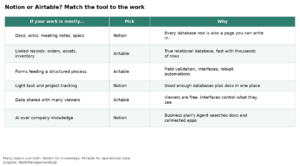
If your problem is “our knowledge is messy,” fix databases and permissions first. Our Smartsheet vs Notion comparison and Notion pricing guide cover when Notion is the wrong ops tool entirely. Widgets will not fix that.
Indify pricing in 2026 (the vendor most guides mean)
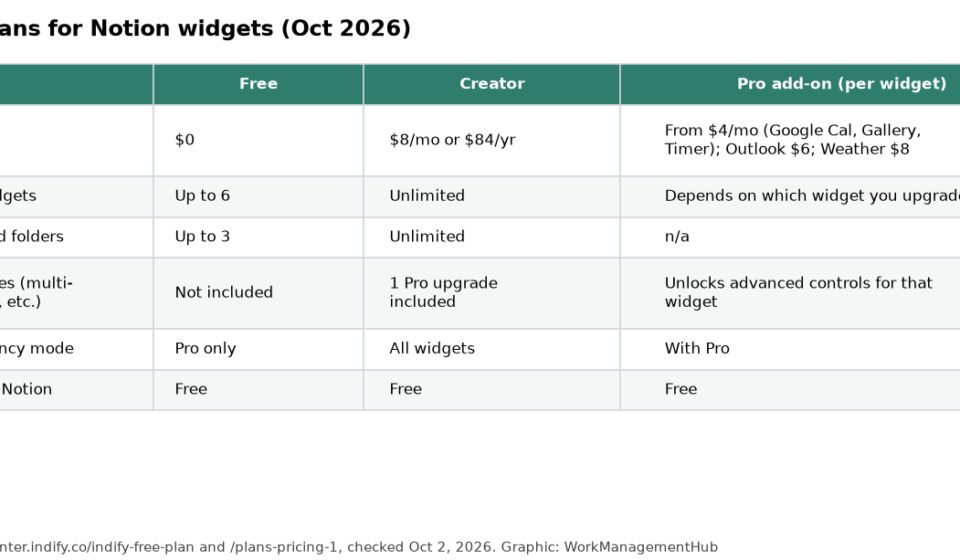
Indify is the widget host Notion users name most often. You configure the widget on Indify, copy a URL, and embed it. Embedding itself is free on every Indify plan.
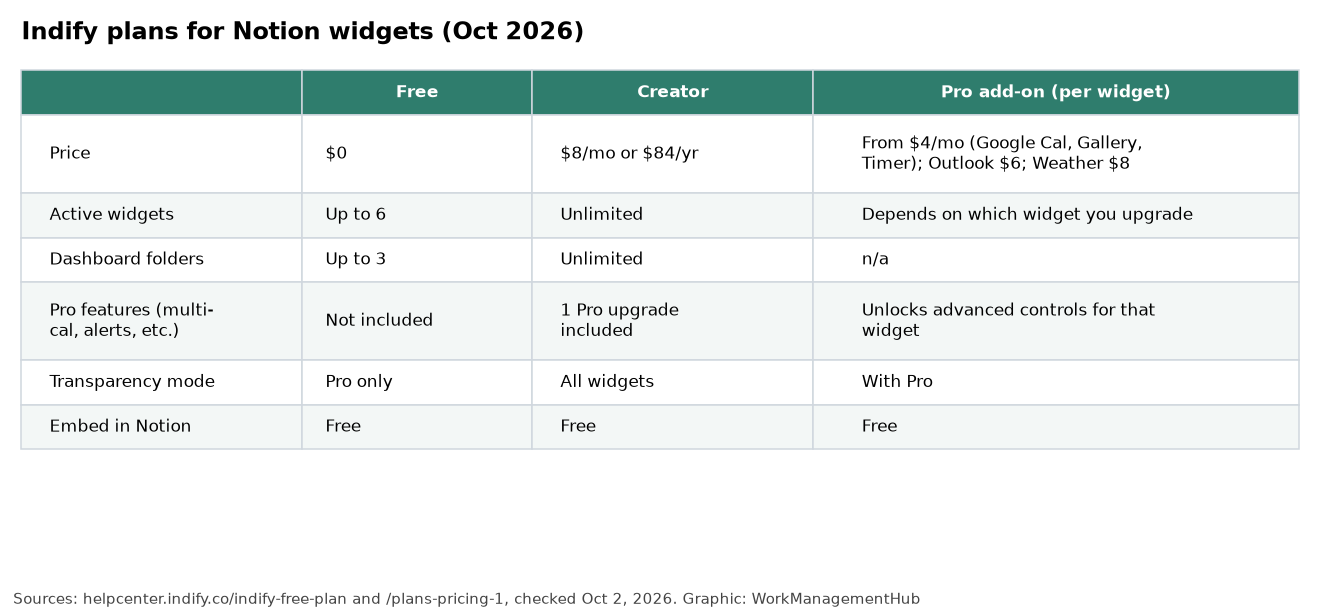
Free ($0): Up to 6 active widgets, up to 3 dashboard folders, light/dark styling, basic typography and sizing. Core widget types include Google Calendar, Outlook Calendar, weather, gallery, clock, countdown, counter, quotes, life progress bar, button and timer. No credit card.
Creator ($8/month or $84/year): Unlimited widgets and dashboard folders, transparency mode on all widgets, and one Pro widget upgrade included.
Pro add-ons (per widget type): Buy advanced controls only where you need them, each with a 3-day trial:
- Google Calendar Pro: $4/month or $42/year
- Outlook Calendar Pro: $6/month or $63/year
- Gallery Pro or Timer Pro: $4/month or $42/year
- Weather Pro: $8/month or $84/year
Indify’s own guidance: if you only need advanced controls on one widget, buy Pro for that widget; if you are hitting the six-widget cap, buy Creator. A Business plan for teams is listed as coming soon. Confirm current numbers on Indify’s pricing pages before you budget a company rollout.
Apption and similar directories are another option if you want a catalog of Notion-oriented embeds (weather, Pomodoro timers, DIY HTML URLs). Treat them the same way: one embed URL, one block, and a privacy review before anything hits a company workspace.
How to embed an Indify widget in Notion
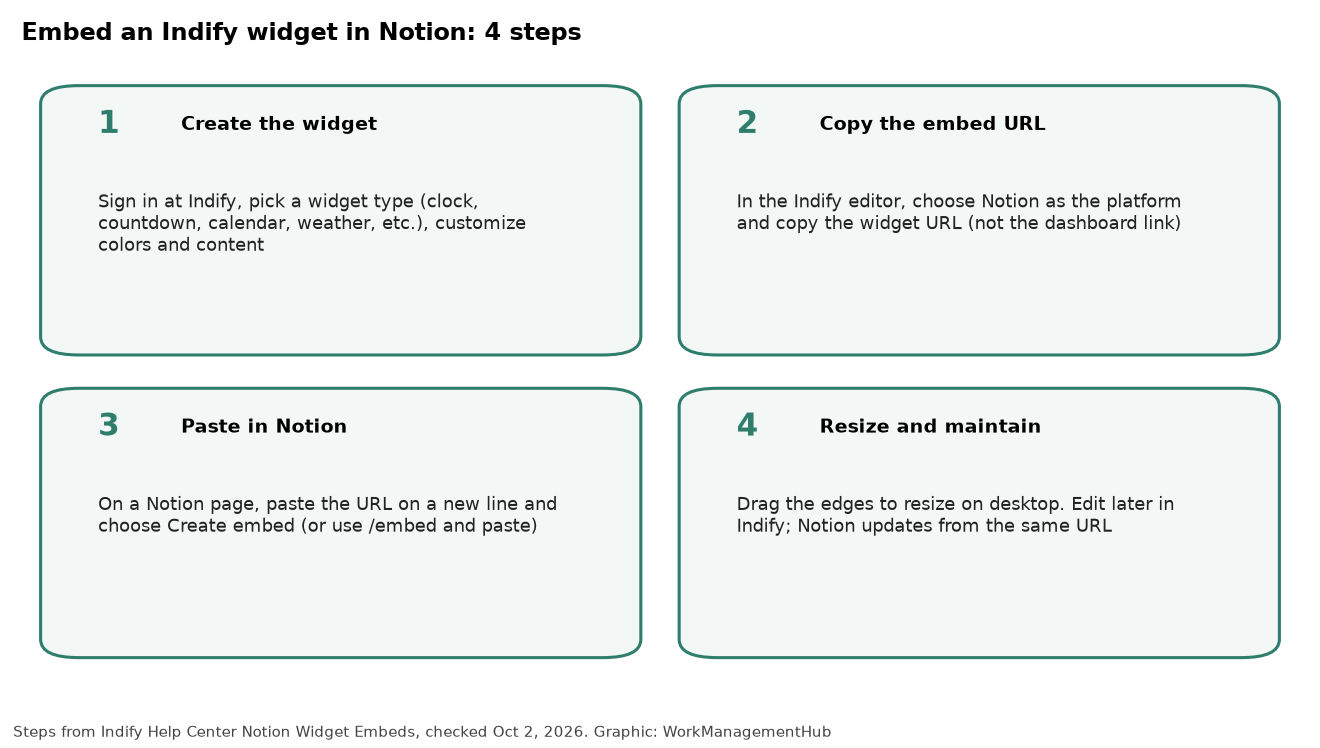
- Create the widget at Indify. Pick the type, set colors and content, save.
- Copy the embed URL. In the editor, choose Notion as the platform and copy the widget link. Do not copy a dashboard or account URL.
- Paste into Notion. On a new line, paste the URL and choose Create embed, or type
/embedand paste there. If you paste as a plain link, you only get a bookmark card. - Resize on desktop. Drag the edges of the embed block. Indify says mobile keeps a fixed width. Edits you make later in Indify show up in Notion from the same URL; you do not re-embed unless you delete the Indify widget.
Troubleshooting that actually comes up
- Blank box or “refused to connect”: Confirm you used the full
https://widget URL, chose Create embed, and that your network is not blocking iframes. Corporate VPNs often do. - Public Notion page, empty widget: The widget itself must be reachable without a login.
- Calendar missing events / wrong time zone: Fix the connected calendar and time zone in Indify, not in Notion. Indify’s help center has dedicated fixes for Google Calendar permission and sync issues.
- You deleted the widget in Indify: The Notion embed goes blank. Restore or recreate the widget, then update the embed URL if it changed.
A work-safe widget stack (not a homepage collage)
For a personal focus page on Free: one clock for your home zone, one countdown to your next hard deadline, one Google Calendar strip for today/this week. That is three of your six Free slots. Leave room.
For a team launch page on Free or Creator: one shared countdown, one calendar widget tied to the launch calendar, optional counter for a metric someone already owns. Put the real plan in a Notion database with owners and dates. Link related databases with relations and rollups rather than more embeds; our linked databases guide covers that pattern.
For a client-facing Notion site, be stricter. Every third-party embed is another script context on the page. Prefer Notion’s own site blocks unless the widget is the point of the page. See our Notion Sites guide before you publish.
Security and admin notes
Widgets do not need access to your Notion content to render. They show what you configured in the widget host, plus any calendar or weather account you connected there. Still:
- Prefer company-controlled accounts for Google or Outlook calendar connections.
- Do not paste API keys or private dashboard URLs into a public Notion page.
- If your security team blocks unknown iframes, get Indify (or Apption) allowlisted before you promise a widget-based dashboard.
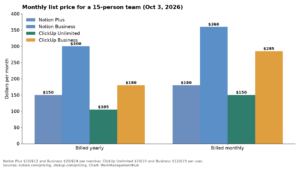
- Notion plan choice (Free, Plus $10, Business $20 per member per month on Notion’s pricing page as of this check) does not gate basic embeds. AI agents and advanced workspace controls are a separate decision; see Notion pricing 2026.
FAQ
Does Notion have official widgets?
No. Notion supports embeds. Widget sites generate a URL that Notion displays inside an embed block.
Are Indify widgets free for Notion?
Embedding is free. Indify Free includes up to six active widgets. Creator and Pro add-ons are optional paid upgrades for higher limits or advanced controls.
Can I put widgets inside a Notion database?
You embed them in the body of a page, including pages inside a database and template pages. The database properties themselves are still Notion fields, not widgets.
Will widgets work in the Notion mobile apps?
Indify states most widgets render on iOS and Android while you are online. Resizing is a desktop feature.
Should a company standardize on Indify?
Only if several teams need the same live elements and IT has reviewed the vendor. For one countdown on one launch page, Free is enough. For a company-wide “widget culture,” you will spend more time on design review than on the $8 Creator plan.
Indify and Notion pricing and embed steps checked against vendor help and pricing pages on October 2, 2026. Both change plans often, so confirm before you buy.
Sponsored