Skip to content
Work Management Hub Work Management Hub

Expert Reviews, Comparisons & Guides for Smartsheet, Monday.com, Asana, ClickUp & More

Work Management Hub Work Management Hub

Expert Reviews, Comparisons & Guides for Smartsheet, Monday.com, Asana, ClickUp & More

  • Airtable
  • Asana
  • ClickUp
  • Jira
  • Monday.com
  • Notion
  • Smartsheet
  • Wrike
  • About
  • Contact
  • Airtable
  • Asana
  • ClickUp
  • Jira
  • Monday.com
  • Notion
  • Smartsheet
  • Wrike
  • About
  • Contact
Close

Search

How-To GuidesJira

Jira Query Language (JQL) Complete Guide 2026: Advanced Filters, Boards & Reporting

By Khasim
June 1, 2026 11 Min Read
0

In the trenches of project management, I once worked with a team struggling to pinpoint overdue tasks buried under layers of sprint data. They needed precise insights, but every JQL query they ran seemed to hit a wall of ambiguity or inefficiency. The key is knowing when JQL shines and when it becomes a bottleneck. If you’ve ever tried to run overly complex queries and ended up with sluggish dashboards, you understand the pain. It’s not just about knowing the syntax; it’s about understanding the performance trade-offs and navigating Jira’s UI to leverage its full potential. Avoid being bogged down; learn the nuances that vendor docs gloss over.

Introduction to JQL in 2026

Jira Query Language (JQL) remains an indispensable tool for teams striving to harness the full potential of Jira’s robust issue tracking and project management capabilities. As of 2026, JQL has evolved into a more powerful and flexible query language, allowing users to create highly specific and complex filters that drive informed decision-making. JQL is integral for those needing to sift through extensive datasets and surface actionable insights.

To effectively leverage JQL, understanding its unique characteristics is paramount. First, recognize JQL’s case sensitivity for field names and values, which can lead to subtle bugs if not handled consistently. For instance, querying with `status = “Done”` will not match `status = “done”`. This necessitates a disciplined approach to naming conventions across your projects.

One critical aspect often omitted in vendor documentation is performance tuning. Complex queries can degrade performance, especially in large-scale Jira installations. By breaking down queries into smaller components or focusing on indexed fields, you can mitigate potential slowdowns. Incorporating Jira’s autocomplete feature can also reduce syntax errors, streamlining the query-building process.

While the overlap between JQL and AI-driven features in the Premium Plan offers a glimpse into the future, practitioners should weigh the costs against their actual needs. For teams under the Standard Plan, leveraging the 1,700 automation runs effectively can bridge some of the gaps AI features promise, without incurring additional expenses.

Navigating JQL’s intricacies requires attention to detail and a thorough understanding of its syntax and capabilities. Begin by accessing the advanced search via the Jira dashboard, a straightforward process that enables you to input JQL queries directly. For a step-by-step guide on accessing advanced search, follow Atlassian’s official documentation.

Navigating the Jira UI for JQL Access

Accessing JQL (Jira Query Language) within Jira’s UI is straightforward, but understanding the nuances can greatly enhance your efficiency. Here’s how to access the advanced search feature to begin crafting JQL queries:

  1. Jira Dashboard — Start from your main Jira dashboard. This is your central hub for all project activities.
  2. Issues Dropdown — Click on the “Issues” dropdown located in the top navigation menu. This menu provides various options related to issue management.
  3. Search for Issues — Select “Search for issues” from the dropdown. This will take you to the basic search interface.
  4. Advanced Search — Click on the “Advanced” link next to the search bar to switch from basic to advanced mode, allowing you to enter JQL directly.

When using JQL, be mindful of potential pitfalls such as syntax errors and performance issues, especially with complex queries. Jira’s autocomplete feature is indispensable for reducing errors by suggesting field names and values as you type. Remember, JQL is case-sensitive, so ensure consistent casing to avoid unexpected results.

One key aspect to remember is the time zone used by Jira. Since Jira records dates in UTC, adjust your date queries accordingly to avoid discrepancies. Finally, if you encounter reserved keywords like “AND,” “OR,” or “NOT” within your queries, enclose them in quotes to use them as values.

For more detailed guidance and to explore JQL’s full potential, refer to the official JQL documentation. Mastering these navigation steps will give you a solid foundation in leveraging JQL for advanced filtering and reporting within Jira.

Advanced JQL Querying Techniques

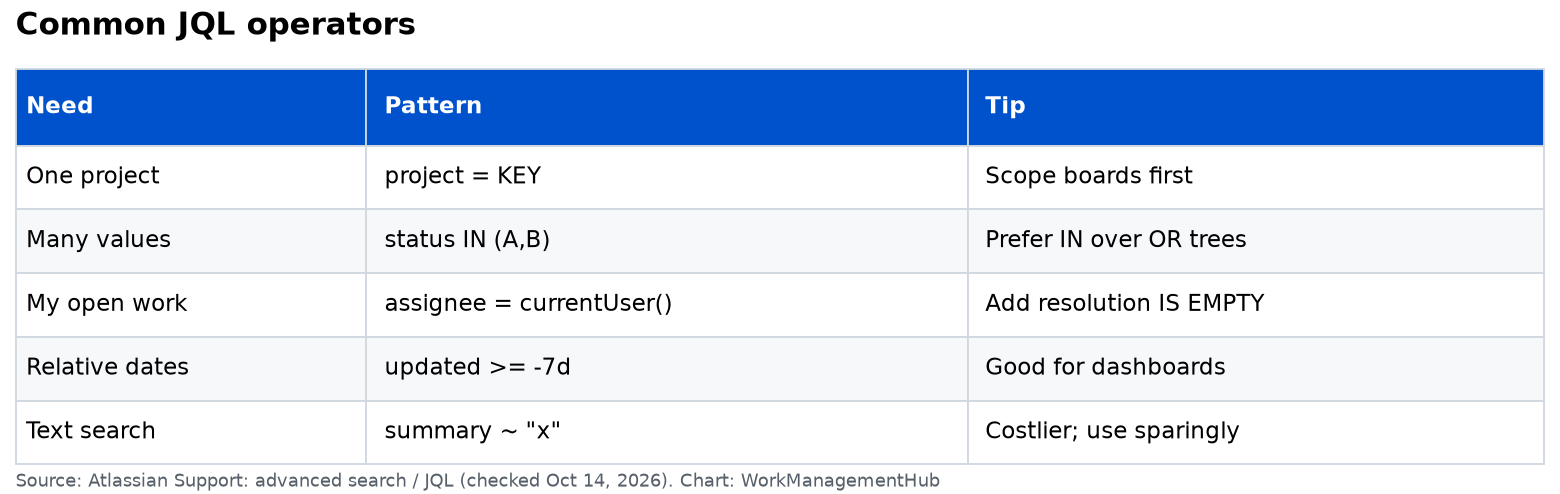
Mastering advanced JQL querying can significantly enhance your ability to manage and report on Jira issues with precision. One technique is leveraging compound queries using operators like “AND,” “OR,” and “NOT.” This allows for more granular filtering of issues, but remember that these operators are reserved keywords and must be used correctly to avoid syntax errors.

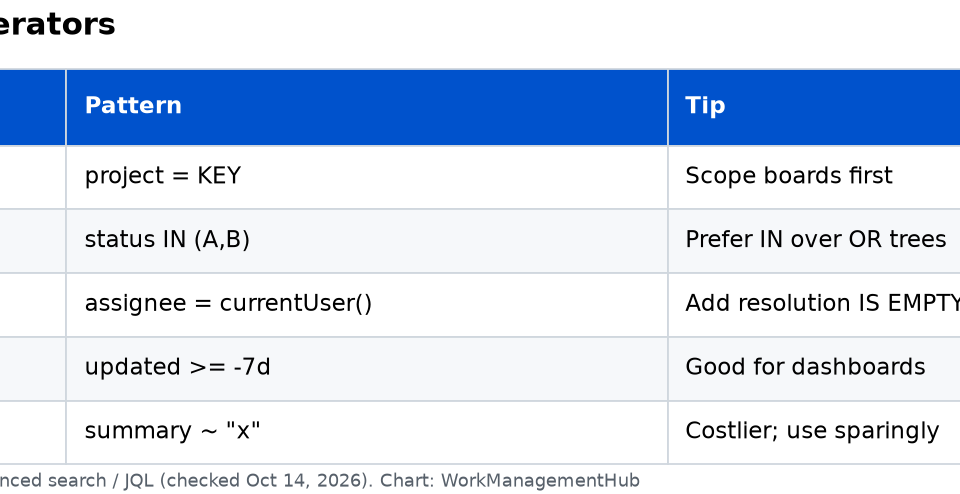
To construct a powerful query, consider using nested queries. For example, to find open issues in multiple projects but exclude those assigned to a specific user, you might use a query like: project in ("Project A", "Project B") AND status = Open AND assignee != "username". This kind of specificity is crucial for teams managing multiple streams of work.

Another advanced technique involves saving JQL queries as filters. Saved filters can be used across different boards and dashboards, providing consistency across the team. To save a filter:

  1. Search for issues — Enter your JQL query in the advanced search bar.
  2. Save as filter — Click “Save as” and give your filter a meaningful name.

For reporting, JQL’s flexibility allows for dynamic dashboards. Use relative dates in your queries, like created >= startOfMonth(), to automate report updates without manual intervention. However, be cautious of performance hits with complex queries; break them down if response times lag.

Be mindful of the 1,700 automation runs per month on the Standard Plan. Automating reports with JQL queries can quickly consume these limits, especially in larger teams. The Premium Plan offers 1,000 runs per user per month, which is more suitable for automation-heavy environments.

For further details on constructing advanced queries, refer to the official JQL documentation.

Common JQL Syntax Errors and Fixes

For teams harnessing Jira Query Language (JQL), avoiding syntax errors is crucial. These errors often arise from incorrect use of field names, operators, or values, and can derail productivity if not promptly addressed. One practical tip is utilizing Jira’s autocomplete feature, which significantly reduces the risk of typos and incorrect field names. This feature is accessible directly in the JQL search bar and helps in confirming the exact field names and operators as you type.

Another common pitfall is the incorrect handling of case sensitivity. JQL’s behavior is case-sensitive for field names and certain values, which can lead to unexpected query results. Always double-check the casing of your field names and values. When in doubt, refer to Jira’s field reference in the autocomplete suggestions, which provides the correct case used in your instance.

Complex queries can also lead to performance issues. If your query is timing out or returning incomplete results, consider breaking it down into simpler components. Use indexed fields wherever possible to enhance query performance. Additionally, watch out for reserved keywords like “AND,” “OR,” and “NOT.” If these need to be used as values rather than operators, enclose them in quotes to prevent syntax errors.

Lastly, time zone discrepancies can affect date-related queries. Jira stores dates in UTC, so be mindful when querying date fields, particularly if your team operates across multiple time zones. Adjust your queries to account for these differences to ensure accurate results. For more detailed guidance, refer to Atlassian’s documentation on JQL syntax and best practices.

Optimizing JQL Performance

Efficient use of JQL can significantly enhance your team’s productivity, but maximizing its performance requires an understanding of some critical nuances. First, always start by simplifying your queries. Long, complex queries can slow down performance. Break these down into smaller, more manageable parts, focusing on indexed fields to quicken retrieval times. Indexed fields are automatically optimized by Jira, which expedites query execution.

Leverage Jira’s autocomplete functionality to minimize syntax errors, which can inadvertently lead to performance bottlenecks. Autocomplete is particularly useful for identifying valid field names and operators, ensuring you’re not wasting time troubleshooting basic mistakes. Familiarize yourself with the syntax, keeping in mind JQL’s case sensitivity.

When dealing with date fields, remember that Jira operates on UTC time. This can cause discrepancies if your team is distributed across multiple time zones. Adjust your queries accordingly to ensure accuracy. If performance issues persist, consider restructuring your queries to reduce the dataset size. For instance, limit your results using specific criteria like date ranges or project keys.

For teams on the Standard Plan, note the monthly cap of 1,700 automation runs. Optimizing JQL is crucial to make the most of these limited runs without hitting the ceiling prematurely. Premium users have more flexibility, with 1,000 runs per user, but it’s still wise to use these efficiently. If you encounter persistent slowdowns, explore Jira’s documentation or support resources for advanced troubleshooting techniques. By focusing on these strategies, you can ensure that your JQL queries are both fast and reliable, keeping your projects on track.

JQL Case Sensitivity and Non-Obvious Gotchas

The intricacies of JQL case sensitivity and its hidden pitfalls are often overlooked, yet critical for precision in querying. JQL is unforgiving when it comes to case sensitivity. Both field names and values must match the case exactly as they appear in Jira. For instance, querying for “status = Open” will fail if the actual value is “open”. Leverage Jira’s autocomplete feature to ensure correct casing and reduce errors.

Another subtle yet impactful gotcha involves time zone discrepancies. Jira stores all date-related data in UTC. This can lead to unexpected results if your team operates across multiple time zones. When crafting JQL queries involving date fields, always account for this by either converting your local time to UTC or by explicitly specifying the time zone in your queries.

Reserved keywords in JQL, such as “AND”, “OR”, and “NOT”, can also trip you up. These words are integral to constructing logical queries. If you need to use these as field values, enclose them in double quotes to avoid syntax errors. For example, query “project = ‘AND'” instead of “project = AND”.

Moreover, the performance of complex JQL queries can degrade if not properly optimized. Break down intricate queries into simpler components or focus on indexed fields to enhance performance. This is especially pertinent if your organization is on a lower-tier plan with limited automation runs, as inefficient queries could quickly exhaust your monthly quota.

Understanding these nuances not only refines your querying skills but also aids in maintaining efficient and accurate project tracking. For more detailed guidance, refer to the official JQL documentation.

Handling Time Zone Discrepancies in JQL

Mastering time zone handling in JQL is crucial for maintaining accuracy in date-sensitive queries. Jira stores all dates in UTC, a fact that vendors often underemphasize, which can lead to unexpected results if your team works across multiple time zones. Misinterpretations typically arise when querying fields like “created” or “updated,” particularly when using relative date functions such as “startOfDay()” or “endOfDay()”.

Here’s how to effectively manage these discrepancies:

  1. Understand Your Team’s Time Zones — Ensure all team members are aware of the default UTC storage and how it affects their local time interpretations. Misalignment here can skew reporting and SLA calculations.
  2. Utilize Date Functions Wisely — When using JQL functions like “startOfDay()”, append an offset to adjust for your local time zone. For instance, “startOfDay(-5h)” compensates for an Eastern Time zone difference during standard time.
  3. Adjust User Time Zone Settings — Navigate to User Profile > Preferences, and set each user’s time zone to their local time. This change impacts personal dashboards but does not alter JQL results.
  4. Verify with Manual Checks — Regularly cross-check JQL results against manual calculations, especially after daylight saving shifts or when new team members join.

Despite these steps, remember that JQL’s inherent limitations with time zones necessitate vigilance. If you frequently run into issues, consider leveraging automation in the Premium plan to schedule queries at times that align with team activities, reducing manual oversight. For more detailed guidance, refer to the official JQL Documentation.

Jira Pricing and Plan Tiers

PlanUser LimitStorageAutomation RunsSupport
FreeUp to 10 users2 GB100/monthCommunity
StandardUp to 100,000 users250 GB1,700/monthBusiness hours
PremiumUp to 100,000 usersUnlimited1,000/user/month24/7
EnterpriseCustomUnlimitedCustomCustom

For small teams, the Free plan provides basic functionality but be wary of the 2 GB storage cap—consider supplementary cloud storage solutions if you hit the limit. The Standard plan is a sweet spot for medium-sized organizations with more complex needs, offering substantial storage and automation capabilities. The Premium plan is ideal for enterprises seeking scalability with features like a sandbox environment and AI-driven insights. Be cautious with the Maximum Quantity Billing (MQB) if your user count fluctuates frequently, as it charges based on peak usage. Always assess your current and projected needs before a commitment. For more detailed plan information, explore the Jira Pricing Plans.

The Future of JQL with AI and Automation

The integration of AI capabilities into Jira’s Premium Plan marks a significant evolution in how we can leverage JQL for automation. Atlassian Intelligence, an AI feature included in the Premium tier, is designed to enhance the JQL experience by offering intelligent query suggestions and error detection. This can drastically reduce the time spent on constructing complex queries and debugging them, as the AI learns from user patterns and historical data.

To get the most out of AI-enhanced JQL, focus on these strategies:

  1. Leverage AI Suggestions — Start typing your query in the JQL editor, and watch how the AI suggests field names and operators based on your previous use patterns. This can prevent common syntax errors and streamline the query-building process.
  2. Automate Routine Tasks — With 1,000 automation runs per user per month in the Premium Plan, automate repetitive query checks and reports. Set up triggers that use JQL to identify issues, and automatically update fields or send notifications.
  3. Monitor AI Insights — Use admin insights to evaluate how effectively AI suggestions are being implemented. Adjust your team’s training or query strategies based on feedback and usage data provided by the AI.

Be cautious, however, of the Maximum Quantity Billing (MQB) model, which could lead to unexpected costs if your peak user count fluctuates. Teams should regularly audit user activity and adjust permissions accordingly to manage costs effectively.

While the integration of AI with JQL offers powerful new capabilities, it’s important to remember that it requires a Premium Plan investment. Analyze whether the enhanced automation and AI features align with your team’s workload and budget. For more detailed documentation on AI and automation in JQL, refer to the official JQL documentation.

Related guides

  • How to Set Up Jira Plans (Advanced Roadmaps) in 2026: The Complete Guide
  • How to Set Up Jira Forms in 2026: Build Smart Intake Forms Without an App
  • How to Build Monday.com Dashboards in 2026: Widgets, Board Limits & Reporting Setup

Frequently Asked Questions

Is JQL case sensitive?

Yes, JQL is case-sensitive, which often trips up new users. For instance, “project” and “Project” are treated differently. Always double-check your field names and values for correct casing to avoid syntax errors. Utilize Jira’s autocomplete feature to help with this.

How can I improve the performance of complex JQL queries?

Break down your complex JQL queries into simpler components and use indexed fields whenever possible. This approach helps reduce performance issues. If you’re unsure which fields are indexed, consult your Jira admin. Avoid using functions and subqueries in performance-critical paths.

What happens if I remove users mid-billing cycle under Maximum Quantity Billing (MQB)?

With MQB, you’re billed based on your peak user count during the billing cycle. Removing users mid-cycle won’t reduce your bill. Plan your user management carefully to avoid unexpected costs, particularly in larger teams where user fluctuation is common.

How do I access Advanced Search for JQL?

Access Advanced Search by navigating to the Jira dashboard, clicking on the “Issues” dropdown in the top menu, selecting “Search for issues,” and then clicking on “Advanced” to enter JQL queries. Familiarize yourself with this path to quickly access JQL as needed.

What are the automation limits for different Jira plans?

Automation runs vary by plan: Free Plan offers 100 runs/month, Standard Plan allows 1,700 runs/month, and Premium Plan provides 1,000 runs per user/month. Choosing the right plan depends on your team’s automation needs, so evaluate these limits against your anticipated usage.

Author

Khasim

Khasim is a work management expert and entrepreneur with a deep passion for project management tools. He works hands-on with platforms like Smartsheet, Monday.com, Asana, ClickUp, Jira, Notion, Wrike and Airtable every day, and loves automating workflows to save teams and customers a ton of time. On WorkManagementHub he shares practical setup guides, honest tool comparisons, and real-world troubleshooting drawn from daily use.

Follow Me
Other Articles
Previous

How to Set Up Monday.com Subitems in 2026: Organize Complex Tasks & Nested Work

Next

Wrike vs Teamwork 2026: Which Is Better for Agency Project Management?

No Comment! Be the first one.

    Leave a Reply Cancel reply

    Your email address will not be published. Required fields are marked *

    Sponsored Smartsheet Expert Services – Implementation, Automation, Training
    Sponsored Power BI & Tableau Analytics – Dashboards, Reporting, Insights
    Sponsored AI Agents for Work Management – Automate Tasks, Integrate Tools

    Categories

    • Airtable (21)
    • Alternatives (12)
    • Asana (41)
    • ClickUp (47)
    • How-To Guides (192)
    • Integrations (17)
    • Jira (36)
    • Monday.com (46)
    • Notion (35)
    • Pricing Guides (11)
    • Project Management (80)
    • Smartsheet (39)
    • Tool Comparisons (59)
    • Wrike (19)

    Recent Post

    • How to Customize Jira Workflows for Non-Technical Teams in 2026: A Comprehensive Guide
    • Notion vs Airtable for Academic Research in 2026: Which Tool Wins?
    • How to Use Smartsheet for Event Planning in 2026: Complete Setup Guide
    • Airtable vs Trello 2026: Which Tool Enhances Cross-Team Collaboration Better?
    • How to Leverage Smartsheet for Strategic HR Planning in 2026: Workforce Analytics, Succession Planning & More

    Independent reviews, comparisons, and hands-on guides for work management tools — Smartsheet, Monday.com, Asana, ClickUp, Notion, Jira, Wrike, and Airtable — written from daily, real-world use of these platforms.

    Tools We Cover

    • Smartsheet
    • Monday.com
    • ClickUp
    • Asana
    • Notion
    • Jira
    • Wrike
    • Airtable

    Company

    • About Us
    • Contact Us
    • Privacy Policy
    Copyright 2026 — Work Management Hub. All rights reserved. Blogsy WordPress Theme