
Download the Notion Calendar app for Mac or Windows (or open it on the web), sign in with your Notion account, connect at least one Google, Outlook or iCloud calendar under Settings, then link your Notion workspace and add any database that has a date property. That last step is the part worth getting right.
Notion Calendar is a separate application from Notion. People miss this constantly, install the Notion desktop app, hunt for a calendar tab, and conclude the feature does not exist. It is its own download, its own window, its own menu bar icon.
Install and sign in
Notion documents the app as available on web, Mac, Windows, iOS and Android. The desktop build requires macOS 11 or above. On the web it runs in Chrome, Safari, Firefox, Edge and Arc, across macOS, Windows, ChromeOS and Linux.
One decision at signup matters more than it looks. Notion’s advice is to sign up with an email address you will always be able to access, because only one Notion account can be linked to a Notion Calendar account. Lose access to that account and you lose access to the calendar. Use a personal address as the primary and attach the work account afterwards.
Connect your calendar accounts
The provider question generates more confusion than any other part of setup, partly because Notion’s own documentation is inconsistent about it. Notion’s account-creation doc says the app is compatible with Google, iCloud, and Microsoft Outlook calendars. But the help article on managing calendars opens with a line saying you can connect calendars from Apple and Google, then gives explicit Microsoft Outlook instructions further down the same page. Treat Outlook as supported on desktop and web; the account doc separately notes that mobile support for Outlook calendars is “coming soon,” which is a hedge Notion has not dated.
- Open Notion Calendar and go to Settings.
- Under Calendar accounts in the sidebar, select Add calendar account.
- Pick your provider and authorize. For Google, Notion Calendar is a Google-verified app; if you hit an authorization error on a work address, a Workspace admin needs to mark Notion Calendar as Trusted under Security > Access and data control > API controls.
- For iCloud, generate an app-specific password at your Apple account first. Apple requires it, and the password looks like four groups of four letters. Your ordinary Apple password will be rejected.
- For Microsoft Outlook or Microsoft 365, choose Microsoft Outlook and sign in. If your organization restricts third-party app access, IT has to approve Notion Calendar before the connection completes.
Two constraints are documented and neither is obvious. Notion notes that if you cannot add more than five calendars, that is deliberate, because performance degrades past that number. And you cannot subscribe to a new calendar from inside Notion Calendar at all. Subscribe in Google Calendar first, and it appears here afterwards.
Once accounts are in, the housekeeping is quick. Hide a calendar with the eye icon in the left sidebar. Change its color with •••. Set a default calendar via Settings > Calendar accounts, then ••• > Make default calendar. If the same event lands on two connected calendars and shares an event ID, Notion Calendar merges the duplicates automatically, which is a small mercy for anyone running work and personal accounts side by side.
Link your Notion workspace and add databases
This is the reason to use Notion Calendar over any other calendar app, and it has a hard prerequisite: Notion’s documentation states a database must have a date property to be connected at all. No date property, no connection. Formula, Created time and Last edited time will populate dates, but those become read-only inside the calendar.
- Go to Settings, and under Notion workspaces select Add Notion workspace.
- Grant access. Multiple workspaces must be connected individually, even when they share one email address.
- In the left sidebar of Notion Calendar, find the connected workspace, hover over its name, then select ••• > Add Notion database.
- Search for and select the database. If it has more than one date property, choose which one drives the calendar.
- To add a second view from a database you already connected, select ••• next to its name > Add Notion database view.
You can also trigger this from inside Notion itself: open the database, click the view name, and choose Manage in Notion Calendar. Either way, databases can only be added from desktop or web, never mobile, and the ceiling is 20 databases per account.
Access rules follow Notion’s normal permission model. Can view is enough to display a database in your calendar; Can edit content is required to change anything. If a database appears but individual pages are missing, those pages likely carry permissions that differ from the parent, which is a common source of Notion permission problems that look like sync failures. A database that will not appear at all is worth checking against the usual Notion database loading issues before assuming the calendar integration is broken.
What you can actually edit from the calendar
Notion lists the manageable properties as title, date, status, select and multi-select, page icon, text, checkboxes, plus ID and Person as read-only. Be aware that the same help page contains a contradiction: an earlier paragraph says you can edit select “but not multi-select” properties, while the note lower down includes multi-select. I have not seen Notion reconcile the two, so treat multi-select editing as unreliable rather than guaranteed.
Time blocking, and why it writes back
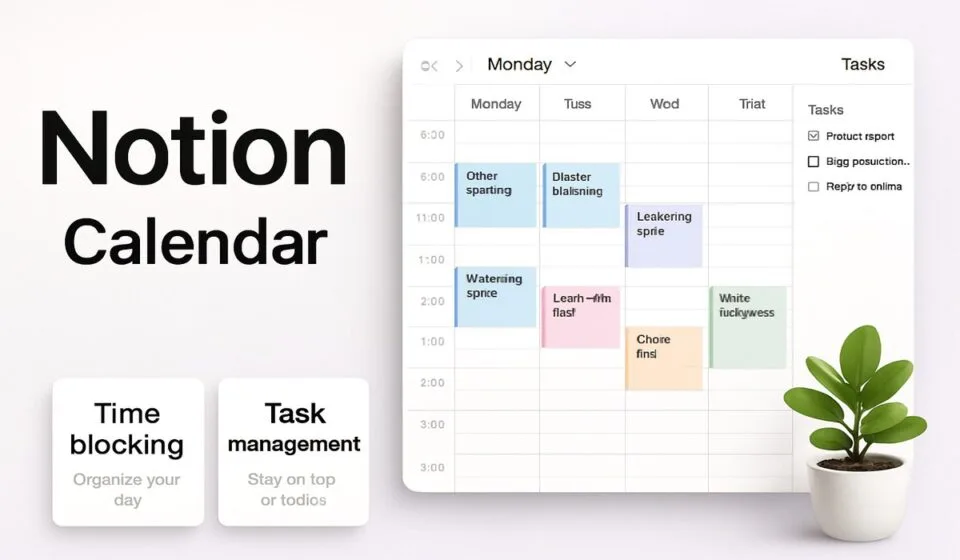
Database items with a start and end time appear as timed events. Items with a date but no time appear as all-day events pinned to the top of the grid. Drag one of those all-day items into a time slot and the Notion database updates to match. That two-way behaviour on the date field is the genuinely useful part of the setup, and it is what turns a task database into a time-blocking system without any duplicate data entry.
The list panel makes this faster. Click a database name in the left sidebar and a panel opens with every page in it, filterable by status or by whether a date is assigned. Drag undated items straight onto the grid. For teams running task databases this pairs well with the sort of shared workspace structure most Notion teams settle into, since the database stays the source of truth and the calendar is just another window onto it.
Scheduling links and availability
Notion Calendar includes booking links, which removes the need for a separate scheduling tool for most people. Notion’s scheduling documentation describes two types: one-off links for a specific person at a specific time, and recurring links for repeated use with different people.
- Select Scheduling in the left context panel, or press
S. - Click Create recurring link or Create one-off link.
- Add available times. For recurring links, enter ranges per day and use + to add multiple ranges to one day. For one-off links, drag directly on the grid.
- Optionally add an expiration date, location, conferencing link, phone number, booking window, and description.
- Customize the URL, then click Create.
- Scroll to the bottom of the availability settings and toggle Avoid conflicts, then pick which calendars to check against.
Conflict avoidance counts focus time and out-of-office events, meetings you accepted or marked tentative, and events you organized. Invitees can reschedule or cancel through a link in the event description, with one exception Notion calls out: rescheduling is unavailable on single-use one-off links. Scheduling links are desktop and web only.
Focus and out-of-office event types carry their own gate. Notion states these are only available to users with work or school accounts managed by Google Workspace. Personal Gmail accounts do not get them.
Notion Calendar vs the built-in calendar view
These solve different problems, and the standalone app does not replace the database view. If you are still mapping out which view fits which job, our guide to Notion database views and charts covers the wider set.
| Notion Calendar (app) | Calendar view (database) | |
|---|---|---|
| Where it lives | Separate app: web, Mac, Windows, iOS, Android | Inside any Notion page |
| Requires | Database with a date property | Database with a Date property |
| Shows external events | Yes, Google, Outlook and iCloud | No |
| Time-of-day grid | Yes, hour by hour | No, month or week layout only |
| Property editing | Limited set: title, date, status, select, text, checkbox, icon | Every property the database has |
| Filters and sorts | Status and date filters only | Full filter, sort and grouping |
| Card properties on display | No | Yes, choose and reorder them |
| Scheduling links | Yes | No |
| Sharing with a team | Per-user connection only | Inherits normal Notion page permissions |
The built-in view still wins for anything that involves the whole team looking at the same board, or where you need filtering beyond status and date. Notion Calendar wins the moment external meetings enter the picture. Most people end up using both, which is fine.
The limitations you should know before committing
The database connection runs one way. Notion is explicit that connected database items appear in Notion Calendar only, not in Google or iCloud, and that you cannot import Google Calendar events into a Notion database. There is also no way to turn a Notion Calendar into a Notion database. A view-only Google Calendar embed inside a Notion page is the documented workaround, and it only works when the embed uses the same email address as your Notion account.
Mobile is the bigger gap. Notion publishes an explicit list of what mobile cannot do: search events or contacts, edit events unless created on iOS by you as organizer, create scheduling snippets, set up connections or auto-generated conferencing links, attach Notion pages, set Notion Calendar as the system default calendar app, switch to week, month, agenda or list views, or create out-of-office and focus events. Mobile gives you a one, two, or three-day view and home or lock screen widgets. That is close to a read-only companion.
Smaller absences: travel time is not supported, and there is no way to subscribe to new calendars from within the app. Teams already wiring Notion into their communication stack through something like a Notion and Slack integration should not expect the calendar to participate in those flows; it is a separate surface.
On cost, Notion’s pricing page lists Notion Calendar as a Free plan feature. Paid Notion tiers run $10 per member per month for Plus and $20 for Business on annual billing, with Enterprise quoted custom, but none of that is a paywall on the calendar app itself.
Frequently asked questions
Is Notion Calendar free?
Yes. Notion’s pricing page lists Notion Calendar under the Free plan, described as connecting multiple calendars to manage work and time together. Paid Notion plans start at $10 per member per month for Plus and $20 for Business on annual billing, but the calendar app itself isn’t the thing you’re paying for.
Can I see Google Calendar events inside a Notion page?
Not through Notion Calendar. Notion’s help center states you can’t bring calendars like Notion Calendar or Google Calendar into Notion, and that database items you connect appear only in Notion Calendar, not back in Google or iCloud. A view-only Google Calendar embed is the documented workaround.
Why isn’t my database showing up?
Three usual causes. The database has no date property, which Notion requires for the connection. You tried to add it on mobile, but Notion says databases can only be added from desktop or web. Or one page carries permissions different from the parent database, so it stays hidden from your calendar.
How many calendars and databases can I connect?
Notion documents a limit of 20 databases per Notion Calendar account. For calendar accounts there’s no hard cap stated, but the help center warns that performance can suffer past five, which is why some people find they can’t add a sixth. Plan your connections accordingly.
Does the mobile app do everything the desktop app does?
No, and the gap is wide. Notion’s own list rules out searching events, creating scheduling links, attaching Notion pages, auto-generated conferencing links, and week or month views on mobile. You also can’t edit an event unless it was created on iOS and you’re the organizer.
Sponsored