monday.com WorkDocs Guide 2026: Doc Types, Permissions, Public Links and Board Tricks

monday.com WorkDocs are shared docs that live next to your boards. The Free plan allows up to 3 docs; paid plans list unlimited docs. There are three doc types (Main, Private and Shareable) and three edit settings. Public links are read-only and hide boards, files and comments. The best feature is the link to your boards: you can turn doc text into board items and pull live column values into a doc.
This guide follows monday.com’s help articles on getting started with WorkDocs, WorkDoc permissions, sharing and export and using docs in your workflow, plus the monday.com pricing page, checked on October 16, 2026.
Pick the right doc type
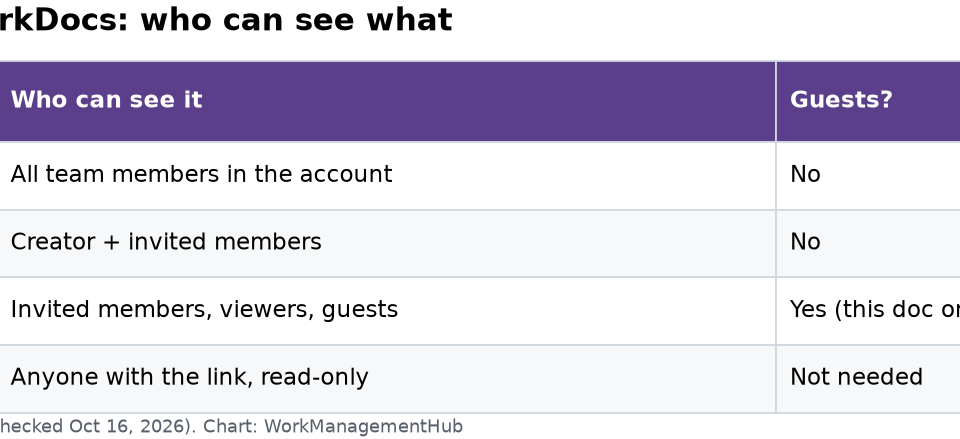
| Doc type | Who can see it | Guests? | Use it for |
|---|---|---|---|
| Main | Every team member in the account (admins, members, viewers) | No | Team wikis, process guides |
| Private | The creator and members they invite | No | HR notes, draft plans |
| Shareable | Invited members, viewers and guests | Yes, only this doc | Client briefs, freelancer specs |
| Public link | Anyone with the link, read-only | Not needed | Release notes, public FAQs |
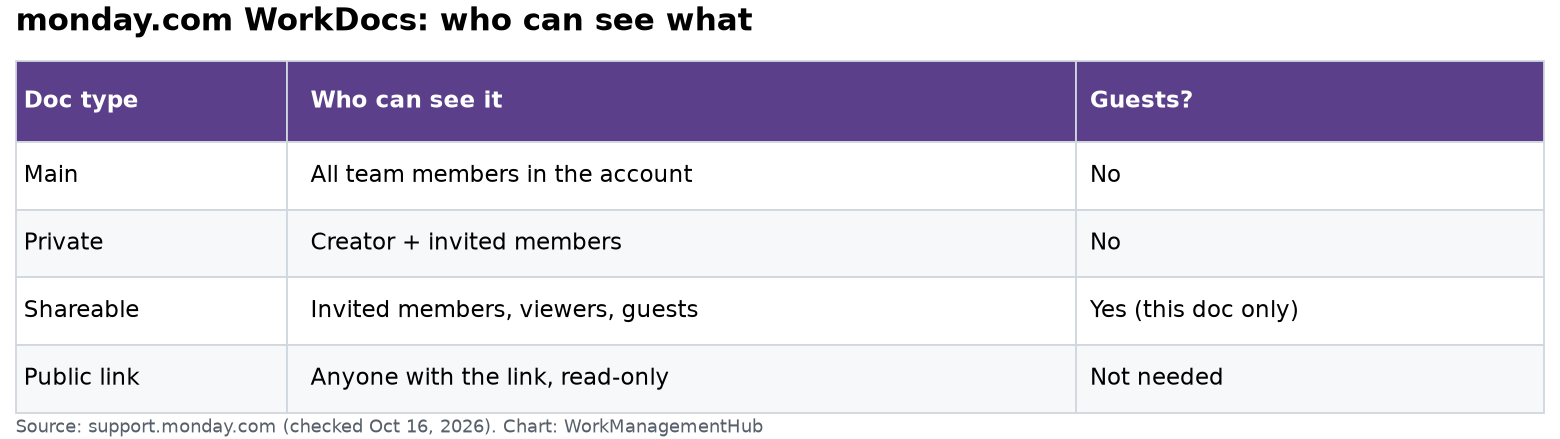
A guest invited to a Shareable doc sees only that doc, nothing else in your account. That makes Shareable the safe choice for client work.
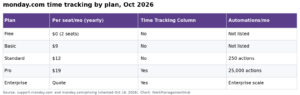
Private boards and docs are listed on the Pro plan. Our monday.com pricing guide shows what else each plan adds.
Create a doc in two places
- In a workspace: select the + at the top of the left pane, then New Doc.
- On a board: add a monday Doc column. Each item can then hold its own doc, like a brief for each project.
You can also add a doc as a board view. Select + next to the main table tab and pick Doc. It sits right next to the table, so the team sees it while working.
One rule to remember: docs in a Doc column take the board’s permissions. If the board is private, every doc in that column is private too. If you change the board to main, the docs follow.
Set edit permissions
Select Share at the top of the doc, then pick one of three options:
- Only doc owners can edit. Owners have a blue crown by their name.
- Everyone with access to this doc can edit. For a main doc, that means anyone with access to its workspace.
- Everyone with account access can edit, even without a seat in this product. For example, a CRM-only user could edit a doc made in your work management account.
The creator is the first owner. Select the gray crown next to someone’s name to make them an owner too. Only owners can crown others, and only owners can delete or duplicate the doc.
Admins can also control who may create docs on items. Go to Administration, then Permissions, and set “Create docs on items” by user type.
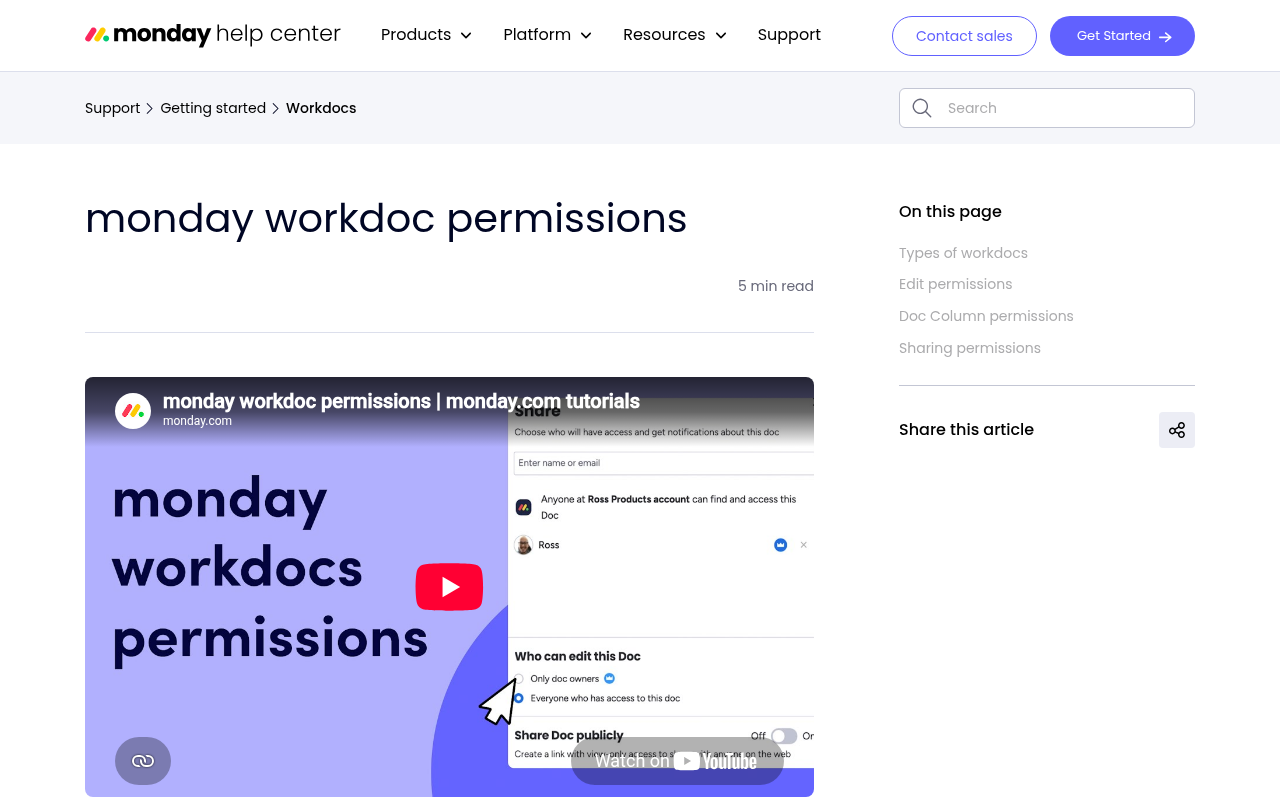
Share a public link (and know its limits)
Select Share, then turn on Get public link. A blue banner at the top shows the doc is on the web. Select Preview to see what outsiders see.
What changes in the public version:
- It is read-only. No edits, no clicks on content.
- @mentions and linked boards show as plain text.
- Embedded boards and widgets are hidden, because they hold account data.
- Files and attached videos are hidden.
- Changes reach the public version about every 30 minutes, not instantly.
Who can do it: only doc owners and account admins. Members can’t. Public links are not available on trial accounts. To turn a link off, switch the toggle off. A browser that already has the page open may keep access for up to 5 minutes.
On Enterprise, public links are off by default. An admin turns them on in Admin, Permissions, with the “Broadcast docs on the web using public link” box.
Export and present
Open the three-dot menu at the top right, then Export. You can pick:
- Word (.docx)
- PDF, with a preview, portrait or landscape, and a choice of pages
- Markdown (.md)
Markdown export is handy if you also keep docs in a wiki or code repo. For meetings, select Present mode at the top right for a wide, clean layout with light, dark or night themes.
Five board tricks worth learning
1. Turn text into items
Highlight a bulleted list and choose to add it to a board. Each bullet becomes its own item. This turns meeting notes into tasks in seconds.
2. Mention a board
Type / then “boards” and pick Mention boards. Readers can click straight through to the board.
3. Add live column values
Type { in your text to insert a dynamic value from a board item, like a status or due date. It updates as the board changes. Type / for the current time or today’s date. This is great for release notes and project summaries.
4. Embed a working board
Select Add, then More options, then Board under Productivity. The embedded board stays fully working inside the doc. Remember: it will not show on a public link.
5. Use AI on the doc
Select the AI Assistant button on the top panel to summarize the doc or draft new text. Read the output before you share it. Our monday.com AI agents guide covers the wider AI features.
Automate docs with the workflow builder
The workflow builder has two doc actions:
- Add content to doc: when an item changes (for example, status becomes “Done”), chosen column values are added to a doc.
- Create doc: when a trigger fires, monday.com creates a new doc, named after the item, with the privacy you pick.
A note on plans: the help article on doc workflows says the workflow builder is for Enterprise plans. The pricing page also lists a number of workflows on Standard and Pro. Test the “Create doc” action in your account before you build a process around it.
Where WorkDocs fall short
WorkDocs are good for docs that sit close to the work. For a large company wiki with deep page trees and heavy publishing, a docs-first tool may suit you better. If your docs are the product, compare options in our Notion vs Confluence guide or monday.com vs Notion.
Common questions
How many WorkDocs do I get on monday.com Free?
Up to 3 docs. Paid plans list unlimited workdocs.
Can guests see a Private WorkDoc?
No. Private docs are for internal users only. Use a Shareable doc to invite guests.
Why does my public link not show my embedded board?
Public links hide embedded boards, widgets, files and videos to protect account data.
How often does a public WorkDoc link update?
About every 30 minutes, not in real time.
Can I export a monday.com WorkDoc to Word?
Yes. Use the three-dot menu, then Export, and choose Word, PDF or Markdown.
Checked against support.monday.com (WorkDocs getting started, permissions, sharing and export, workflow integration) and monday.com/pricing on October 16, 2026.
Sponsored