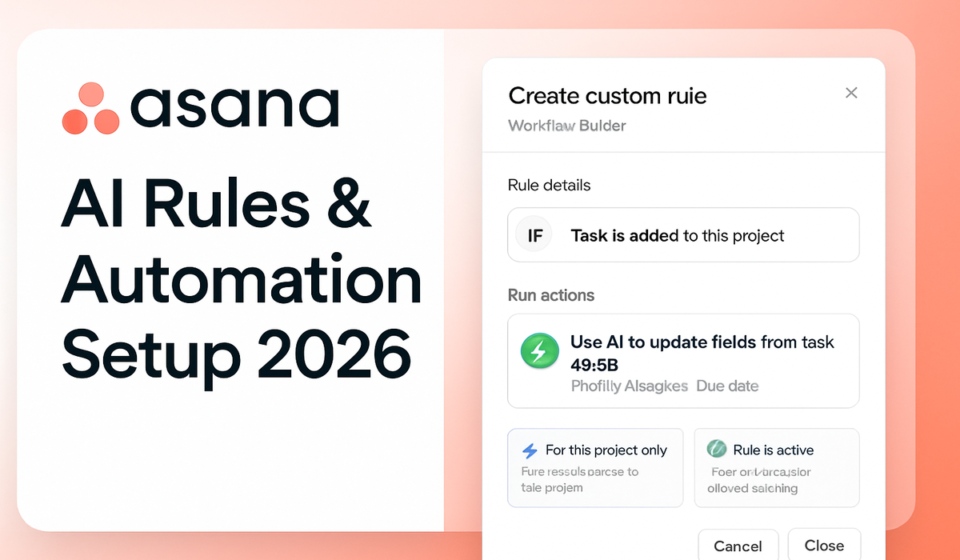

Asana automation runs on three layers. Standard Rules pair a trigger with an action and use no AI at all. AI Studio adds AI steps inside those same rules. AI Teammates are agents you assign work to. Build rules from the Customize menu, and add AI only where deterministic logic genuinely falls short.
The three automation layers, and who gets them
Most confusion about Asana automation comes from treating these as one product. They are priced, governed, and built differently.
| Layer | What it does | Plans that include it |
|---|---|---|
| Rules | Trigger-and-action automation with conditions and branching. No AI, no credits, deterministic every time. | Starter, Advanced, Enterprise, Enterprise+, plus legacy Premium, Business and Legacy Enterprise. Portfolio rules are Advanced and above. |
| AI Studio | AI steps you drop into the same rule builder: classify, summarize, draft, route, research. Every run consumes credits. | Starter, Advanced, Enterprise and Enterprise+. AI Studio Basic is included on all paid plans; Plus and Pro are paid upgrades. |
| AI Teammates | Named agents you assign tasks to. They work with project context and check in at checkpoints rather than firing once. | Sold as an add-on to Starter, Advanced, Enterprise and Enterprise+. Priced through sales. |
Asana’s help center states the rules gating plainly: the plans that include Rules are Starter, Advanced, Enterprise, and Enterprise Plus plans, along with the legacy Premium, Business and Legacy Enterprise tiers. The free Personal plan has none. That matters more than it sounds, because most Asana automation tutorials quietly assume you are already on a paid seat.
Building a rule from scratch
The rules gallery covers the obvious pairs, like move to Done and mark complete. Anything with a condition needs the custom builder. Asana’s official rules documentation gives the sequence:
- Open the project and click Customize in the top-right corner.
- Click Rules.
- Click +Add.
- Either type an instruction for AI Studio to draft the rule, choose Start from scratch, or pick a featured rule.
- Click the cog icon in the upper right and set Runs on tasks or Runs on tasks and subtasks.
- Click Add rule name and name it after the outcome rather than the trigger. “Route design requests to Alex” beats “New task rule 3”.
- Choose your triggers and actions, and add conditions if the rule needs to branch.
- Click Publish rule.
Step five is the one people skip. That cog also holds two tabs: General, where you decide whether this rule can be triggered by another rule, and Permissions, which shows the rule owner and controls who can edit. Rules triggering rules is how a two-step intake process becomes an infinite loop, so set that switch deliberately.
Custom field rules only appear once the project actually has a custom field, so build your custom field structure before you automate against it. The same applies to intake: a rule that fires on form submission needs a live form, covered in the Asana forms and intake setup guide.
Editing, pausing, and orphaned rules
Edits apply on a go-forward basis only. Nothing is reapplied retroactively to tasks already sitting in the project, which is why a badly scoped rule usually needs a manual cleanup pass alongside the fix. To pause, open the rule from the sidebar and click Active; the same control returns it to service. Deleting is a single Delete rule button on the same screen.
Rules that touch external services such as Outlook, Salesforce or Slack can only be edited by whoever created them, because the external step authenticates with that person’s account credentials. Build a Slack notification rule and you have created a maintenance dependency on one named human. When that person leaves, project editors can claim the orphaned rule through Become owner in the Permissions menu.
What AI Studio adds, and what it costs
AI Studio is not a separate builder. It is a set of AI steps inside the rule you were already writing, plus the natural-language entry point at step four above. The common claim that it is Advanced-only is wrong: Asana’s AI Studio page lists it as available on Starter, Advanced, Enterprise and Enterprise+.
The gating that actually bites is credits, not plan. AI Studio Basic is included on every paid plan with a pre-set monthly credit allowance per billing account: 50,000 on Starter, 75,000 on Advanced, 200,000 on Enterprise. AI Studio Plus is $135 per account per month billed annually, or $150 monthly, and includes 100,000 credits per month. AI Studio Pro is contact-sales and includes 5 million credits per quarter. An admin has to enable Asana AI in the admin console before anyone can build a smart workflow at all.
Credits are consumed per run and scale with how much content each run processes and which model handles it. A summarization step over a long task description costs more than a classification step over a title. A rule that fires on every task creation in a busy intake project is the fastest way to burn an allowance, which is the honest argument for keeping classification deterministic wherever a single-select custom field can do the same job for free.
AI Teammates: the names Asana actually publishes
Asana’s AI Teammates page describes the catalogue as “30 pre-built agents for marketing, ops, and IT”, grouped into Marketing, Operations and PMO, IT, and Product and Engineering. The agents Asana names publicly include Campaign Brief Writer, Brand Auditor, Launch Planner, Copywriter, Competitive Market Researcher, Content Localization Manager, Creative Spec Writer, Pricing Strategist, Status Reporter, Business Case Builder, Decision Tracker, Workflow Optimizer, Data Quality Manager, IT Support Specialist, Trend Analyst, Compliance Specialist, Onboarding Assistant, Vendor Evaluator, Spec Reviewer, Bug Investigator and Sprint Coach.
If a guide lists roles like “Intake Manager”, “Backlog Groomer” or “IT Helpdesk”, those are not Asana’s names and appear nowhere in Asana’s published material. You can also build a custom teammate by describing the role in plain language, which the Asana AI Teammates setup walkthrough covers in more depth. Teammates are sold as an add-on to the paid plans rather than bundled into them, so budget for them separately from seats.
Correcting the “AI project selection” claim
Several write-ups credit Asana’s Winter 2026 release with AI-powered project selection. The release note says automatic AI model selection. It removes the need to choose which language model runs an AI step inside your rule. It does not pick projects, route work between projects, or decide what your team works on next. The same release added rule duplication within and across projects, which is the change most teams will actually feel day to day.
Limits worth knowing before you build
- Fifty rules per project, regardless of plan size or tier. Asana’s pricing page markets “unlimited rules”; the help center sets the per-project ceiling at 50.
- Twenty triggers and twenty actions per custom rule. The same trigger can be selected more than once; the same action cannot.
- Rules run on the first level of subtasks only, not on sub-subtasks or anything deeper.
- Due date is approaching and Task is overdue cannot be used as subtask triggers. The rule has to be set to Runs on tasks.
- A misconfigured rule emails its owner once, then stays quiet until the rule has run successfully again. If those emails never arrive, check your Asana notification settings.
- Portfolio-level rules require Advanced or above, so multi-project automation is not a Starter capability.
When a rule is the wrong tool
A rule is wrong when the trigger is a judgment rather than an event. “Escalate anything urgent” is not a rule; “escalate when Priority is set to High” is. If you cannot name the exact field change that should fire it, you are describing a process problem, not an automation gap, and adding an AI step will only make the failure harder to trace.
Rules are also the wrong tool for reporting. Automating a status field does not produce a status update, and teams that try to fake reporting through automation end up with immaculate fields and uninformed stakeholders. That work belongs in dashboards and written status updates.
Finally, a rule is wrong when it is load-bearing but invisible. Fifty rules per project is a ceiling almost nobody should approach. A project carrying thirty automations is a project nobody can debug, and the person who built them is usually the only one who knows why a task jumped sections.
Frequently asked questions
Do I need AI Studio to use Asana rules?
No. Standard rules are pure trigger-and-action logic with no AI involvement and no credit consumption, and they behave identically every time they fire. AI Studio only matters when a step has to interpret unstructured text, such as classifying a free-text request or summarizing a long description. Most genuinely useful automation never needs it.
Which Asana plans include rules?
Asana’s documentation states that the plans including Rules are Starter, Advanced, Enterprise, and Enterprise Plus, along with the legacy Premium, Business and Legacy Enterprise tiers. The free Personal plan has no rules. Portfolio-level rules are narrower still, requiring Advanced or above. Starter is listed at $10.99 per user per month billed annually.
How many rules can one project have?
Fifty, regardless of your plan or company size, with up to twenty triggers and twenty actions inside each custom rule. The practical limit is far lower. Once a project carries more than a handful of automations, tracing why a task moved takes longer than making the move by hand would have taken.
What happens to a rule when its owner leaves?
The rule becomes orphaned and Asana notifies project editors. Anyone with edit permissions can claim it by opening the rule and choosing Become owner in the Permissions menu. Rules authenticating against external tools are the urgent ones, because they stop firing entirely once the creator’s credentials are gone.
Do unused AI Studio credits roll over?
Asana publishes per-plan allowances of 50,000 credits monthly on Starter, 75,000 on Advanced and 200,000 on Enterprise, per billing account, and sells larger blocks through AI Studio Plus and Pro. Asana does not document rollover behavior for the included Basic allowance on its public pricing pages, so confirm with your admin before planning around a carry-over.
Sponsored