
If your Airtable sync stopped, look for the warning icon (⚠) next to the synced table first. Most broken syncs come from one of three things: someone changed the source view’s share link, the person who set up the sync lost access, or the destination base went quiet and automatic syncing paused. Click the arrow next to the table name and choose Sync now. If that fails, choose Update sync configuration and paste a fresh share link.
I checked every step below against Airtable’s help center on October 17, 2026: Troubleshooting syncs in Airtable, Getting started with Airtable sync and Airtable sync permissions. One quick note on words. The source is the view your data comes from. The destination is the base where the synced copy lives.
First, check your plan and your role
Two things block more fixes than any bug.
Plan. Airtable sync is not on the Free plan. It starts on Team. Two-way sync (editing synced records from the destination) needs Business or Enterprise Scale.
Role. Only Owners and Creators in the destination base can change a sync’s settings. Editors can press Sync now and make share links, but they can’t fix a broken setup. If you can’t see the sync settings at all, you are probably an Editor or below. Ask an Owner or Creator to help.
| Limit | Team | Business | Enterprise Scale |
|---|---|---|---|
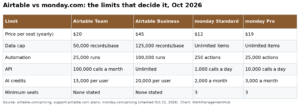
| Price per seat a month (yearly) | $20 ($24 monthly) | $45 ($54 monthly) | Contact sales |
| Sync sources per table | 10 | 20 | 20 |
| Synced tables per base | 10 | 20 | 20 |
| Two-way sync | No | Yes | Yes |
| Sync integrations | Standard only | Standard and Premium | All, including Enterprise Scale |
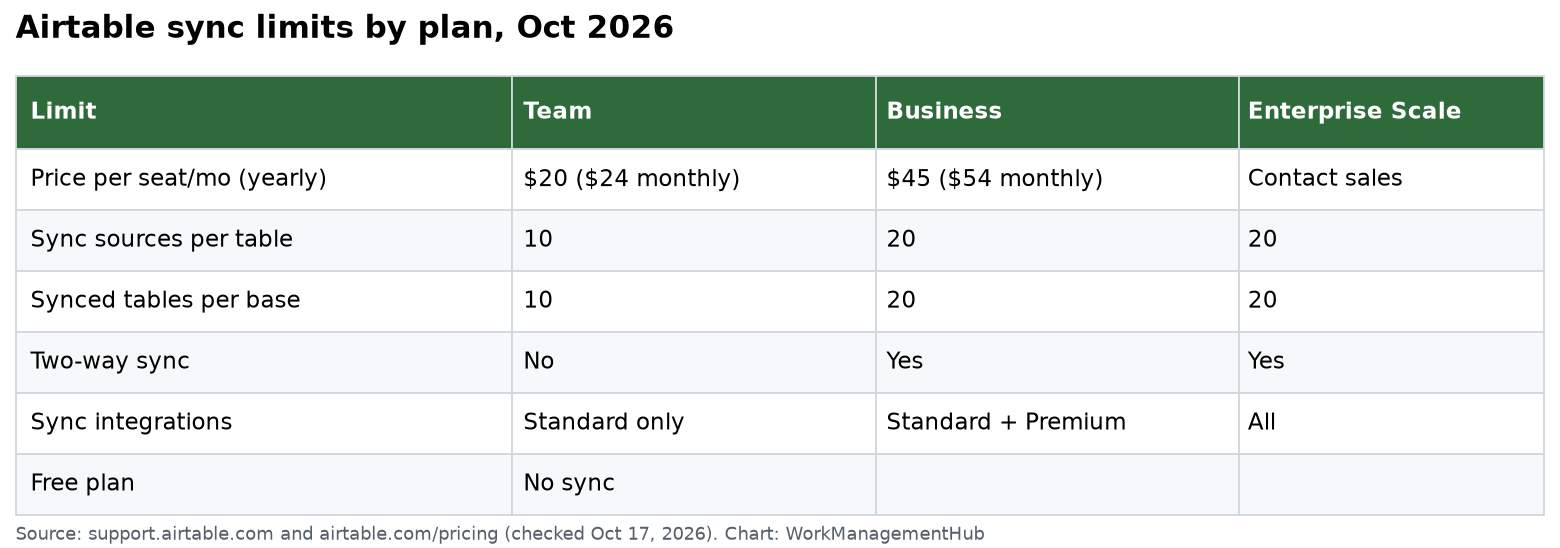
Prices are from Airtable’s pricing page on October 17, 2026.
1. The share link was changed, locked or turned off
This is the most common cause I see. The source view has a special share link that allows syncing. Any of these changes stops every sync that reads from that view:
- Someone clicked Regenerate on the share link
- Someone added or changed a password on it
- Someone added an email domain restriction
- Someone turned sync off on that shared view
Fix: Get the current syncable share link from the source view. In the destination, click the arrow next to the synced table name. Choose Update sync configuration, paste the new link and save.
Tip: One source view can feed many bases. Before you regenerate a link, find out who syncs from it. Otherwise you break all of them at once.
2. The person who set it up lost access
Syncs are tied to the person who first set them up. If that person is removed from the destination base, the sync stops. The same thing happens after an ownership transfer. You may see an error called invalidExternalAccountOwner.
Fix: A current Owner or Creator re-does step 1 with a valid share link. The sync then runs under their account, and your existing data stays in place.
Tip: Have a shared admin account, not a person who might leave, own your important syncs.
3. The destination base went quiet
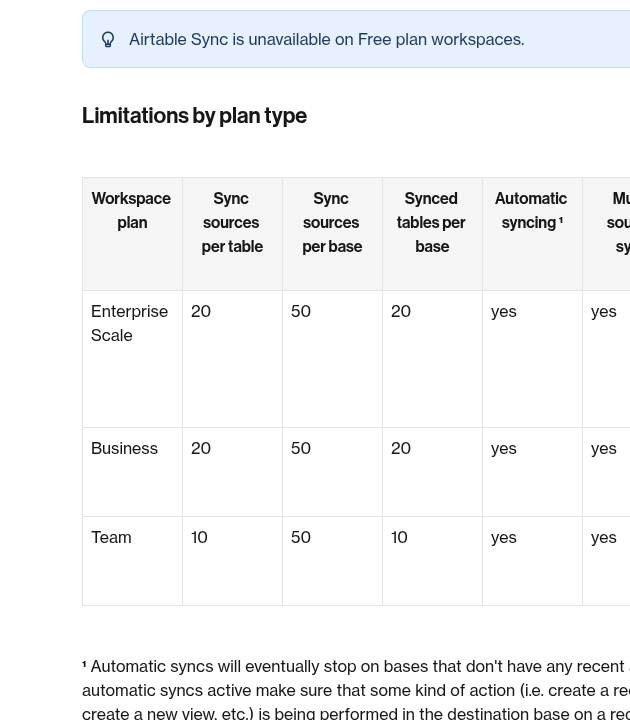
This one surprises people. Airtable says automatic syncs “will eventually stop on bases that don’t have any recent activity.” Nothing looks broken. The data just gets old.
Fix: Click Sync now to catch up. To stop it from happening again, keep the base active. Airtable says scheduled automations or API updates count if they change data in that base. A small daily automation that updates one “last checked” field works well.
4. You see “Unable to sync this source”
The full message is “Unable to sync this source. Unable to sync new data.” It is the most common sync error.
Fix, in order:
- If the source is another Airtable base, re-authenticate with a fresh share link (step 1).
- If the source is an outside app like Salesforce or Google Drive, disconnect and reconnect that account in Airtable. If that fails, remove it and add it again as a new connection.
- Still stuck? Create a new synced table from the same source. A fresh connection often works when the old one won’t.
Also check size. Outside-app syncs have a cap of 10,000 records per source. Base-to-base syncs follow your plan’s record limit instead: 50,000 records per base on Team and 125,000 on Business.
5. A field is missing from the synced table
A new field in the source does not always show up in the destination.
Fix:
- Open the sync settings, click the three dots next to the source and choose Edit synced fields.
- Make sure the field is toggled On.
- Make sure the field is visible in the source view. Hidden fields don’t sync.
- Check that the field isn’t simply hidden in your destination view.
For outside apps, some tools don’t send a field until it has data in it. Add a value to one record in the source, then sync again.
6. Records disappeared after someone changed a filter
The source view’s filters control which records sync. If a teammate adds a filter to the source view, those records leave your destination too.
It gets worse if your sync is set to “Delete the records in this table” when records leave the source. Then anything you added in the destination for those records goes with them, such as extra fields or links.
Fix: Ask the source view owner to undo the filter, then Sync now. To guard against it, lock the source view and pick “Leave the records in this table” if your team adds its own data in the destination. You can clear old rows later with Delete unavailable records.
7. Two-way sync errors: “Field does not exist in every source”
This shows up on two-way synced tables with more than one source. For a field to be editable in the destination, every source must:
- Have that field mapped to the same destination field
- Have data syncing to it
- Have Allow edits from other bases turned on in its sync view settings
Fix: Open Edit synced fields for each source and match the mapping. Also check the destination’s edit setting. If it is set to Fully restricted, the sync acts one-way no matter what the source allows.
8. A renamed or retyped field broke the mapping
Field names don’t sync. If you rename a field in the source, the destination keeps the old name. When you add a new source, Airtable guesses matches by name, so a renamed field may land as a brand-new field. Check the mapping by hand before you confirm.
Changing a field’s type can also break things. The primary field is the riskiest. If its source field is hidden or changed to a type that can’t be a primary field, the sync fails. You also can’t pick a new primary field after the sync is made. You have to build a new destination table.
Don’t use Customize field type to turn a synced field into a linked record field. Every sync rewrites it from the source and wipes the links.
9. You hit a hidden limit
Most teams never reach these, but big bases do. From Airtable’s limits list:
- 400 reads per minute per source base
- 100 sync-enabled share views per base
- 2 MB maximum schema size (fields, settings and views) for a source
- About 1,000 attachments in a single cell, often from a lookup of a lookup
Fix: Remove unused fields from the source view, split giant views, and avoid long chains of attachment lookups.
A 5-minute health check I run on every base
When I take over an Airtable setup, I check these before anything else:
- Who owns each sync? If it’s one person’s account, move it to a shared admin.
- Is the source view locked? Views that are not locked often get “cleaned up” by teammates.
- What happens to deleted records? Pick delete or keep on purpose, not by default.
- Is the base active every day? If not, add a small scheduled automation.
- Is anyone near the limits? Count synced tables against your plan.
When sync is the wrong tool
Sync copies records. It is not a full two-way database merge. If two teams edit the same records all day in different bases, you will fight conflicts. Put that shared data in one base instead, and give each team its own interface. Our Airtable Interface Designer guide shows how.
Synced records can start automations in the destination, but pick the trigger with care. A synced record arrives with all its fields filled at once. Airtable suggests the When record matches conditions trigger, with a condition on a field the automation fills in itself, so each record runs once. Our Airtable automations guide covers the setup.
Before you upgrade just to get two-way sync, read our Airtable pricing breakdown. Business costs more than twice as much as Team per seat. And for context on Airtable’s recent product changes, see what “Back to Bases” means for your workspace.
Common questions
Why did my Airtable sync stop updating?
Usually the source share link changed, the person who set up the sync lost access, or the destination base was inactive. Try Sync now first, then Update sync configuration with a fresh link.
Does Airtable sync work on the Free plan?
No. Airtable’s help center says sync is not available on Free workspaces. It starts on Team at $20 per seat a month billed yearly.
How do I force an Airtable sync?
Click the arrow next to the synced table name and choose Sync now. Editors, Creators and Owners can do this on any plan that has sync.
Why can’t I edit records in my synced table?
Editing needs two-way sync, which is on Business and Enterprise Scale. The source must allow edits from other bases, and the destination can’t be set to Fully restricted.
How many records can Airtable sync?
Syncs from outside apps cap at 10,000 records per source. Syncs between Airtable bases follow your plan’s record limit, such as 50,000 per base on Team.
Limits and steps checked on support.airtable.com and airtable.com/pricing on October 17, 2026.
Sponsored